Preparation
Prerequisites
Required desktop software:
- UgCS Custom Payload Monitor v4.3.0 or higher (referred to below as UgCS-CPM).
- UgCS v5.13.0 or higher (referred to below as UgCS).
Required mobile software for DJI drones and remote controller:
- DJI Pilot 2 (referred to below as DJI Pilot)
- UgCS Companion v1.6.3. or higher
Optional:
- RJ45 Ethernet cable, if the wired Auxiliary connection will be necessary.
Establish an auxiliary connection to SkyHub using Wi-Fi
Danger
It is strongly recommended to switch on a remote controller before any operations with the SkyHub Wi-Fi.
After powering on, the SkyHub operates as a Wi-Fi access point with the following credentials:
- SSID:
UgCS-SkyHub-******(where******is the SkyHub serial number) - Passphrase:
12341234
Note
When connecting to SkyHub Wi-Fi for the first time, Windows will require authentication with a PIN. It is necessary to choose network security key authentication instead. Please switch to security key mode before entering the passphrase.
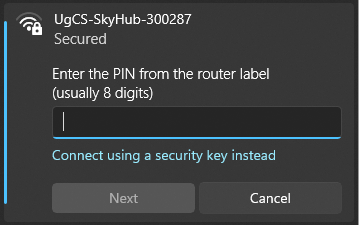
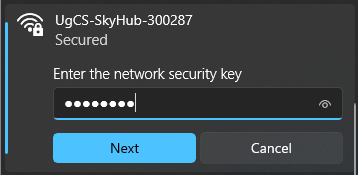
When a connection to the SkyHub hotspot is established:
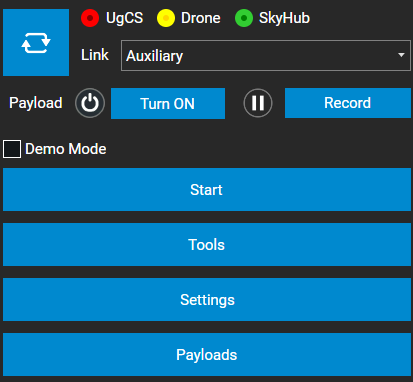
- Open the UgCS-CPM software.
- Press “Settings”.
- Verify that the address is set to 10.1.0.1.
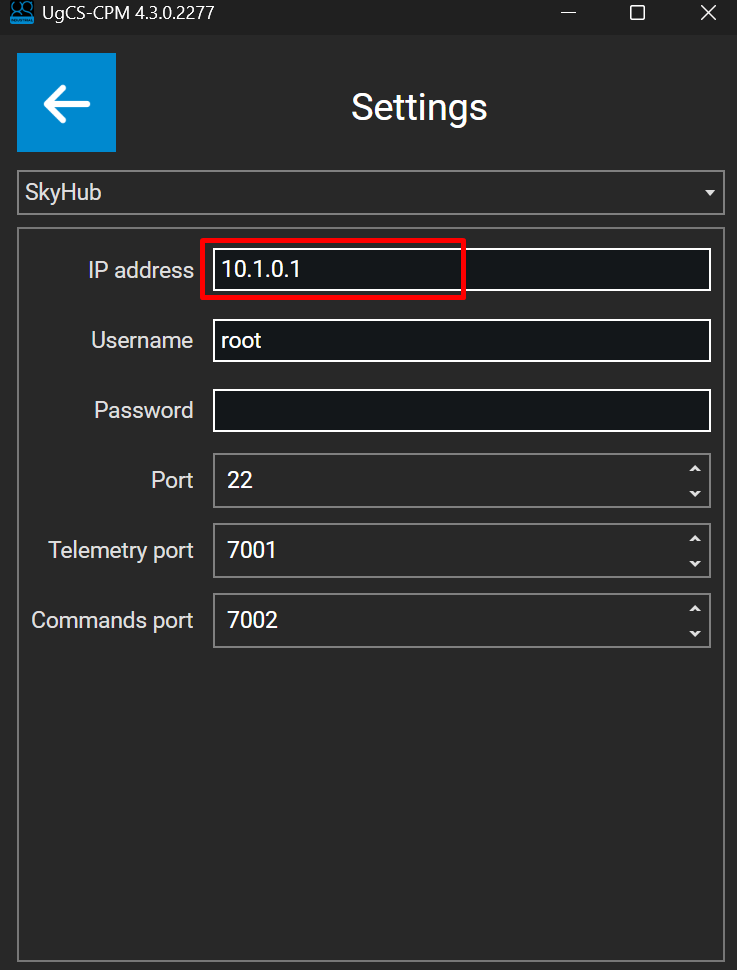
- Press the “back arrow” and refresh the connection list.
- The Auxiliary connection is established.
Establish an auxiliary connection to SkyHub using an Ethernet cable
- Connect one end of the Ethernet cable to the RJ45 port on your computer.
- Connect the other end of the Ethernet cable to the SkyHub Ethernet port.
Note
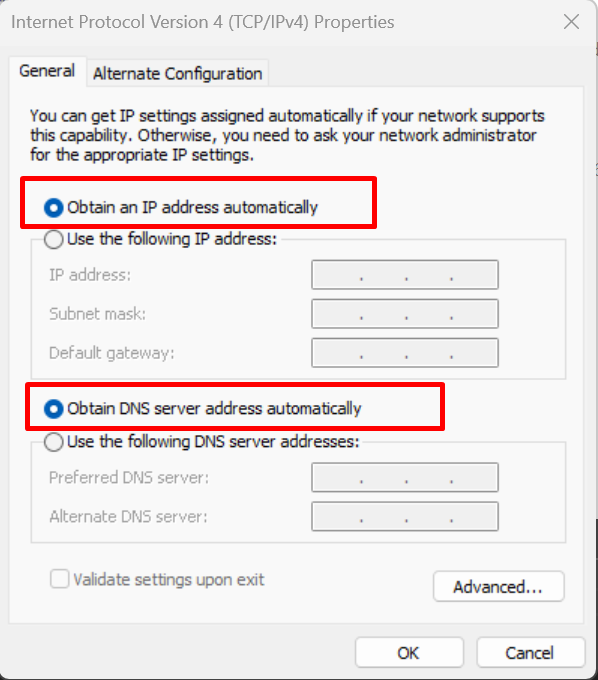
SkyHub runs DHCP service onboard, therefore, the PC’s IP address will be assigned automatically after connection.
- Open the UgCS-CPM software.
- Press “Settings”.
- Verify that the address is set to 10.2.0.1
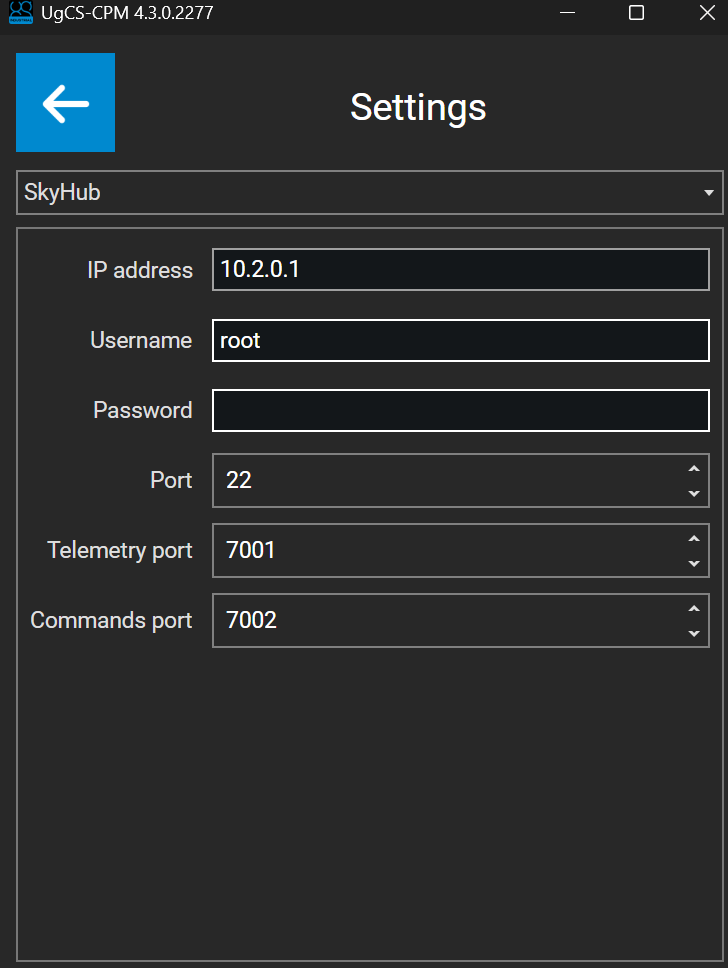
- Press the “back arrow” and refresh the connection list.
- The Auxiliary connection is established.
Caution
If your network adapter has manual TCP/IP settings applied, make sure to switch both IP and DNS to “Automatic”.