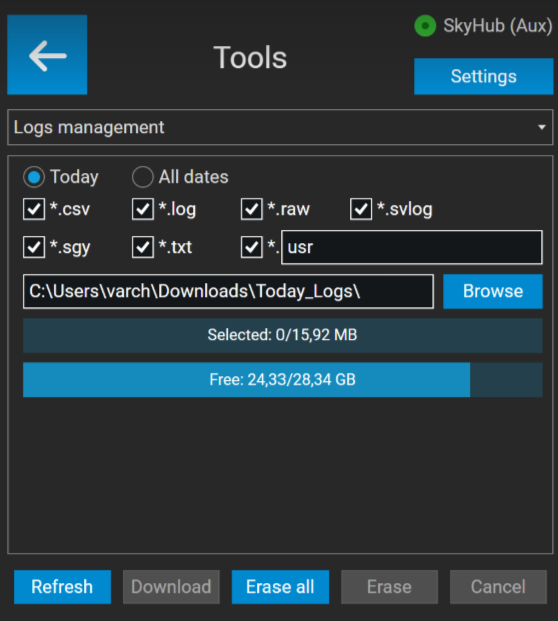
Log Files Management
Access to the log files
- Establish an Auxiliary connection to the SkyHub using Wi-Fi or through the Ethernet cable. See Preparation guide for instructions.
- When the Auxiliary connection is established, launch the UgCS-CPM software.
- Click on the “Tools” section.
- From the drop-down list, select “Logs management”.
Data download
- Press the Browse button to choose the destination folder for log files.
- Select the desired date and file extensions you wish to download.
- Press the “Download” button and wait for the process to complete.
Note
After the log files are no longer needed, you can delete them all using the “Erase All” button.