3. Setup Interface to PX4#
SkyHub can be connected to the flight controller flashed with the PX4 1.10.x or higher firmware.
Make sure UgCS version 4.3 or higher is used (download links can be found in Preparation section) and VSM for PX4 vehicles is installed.
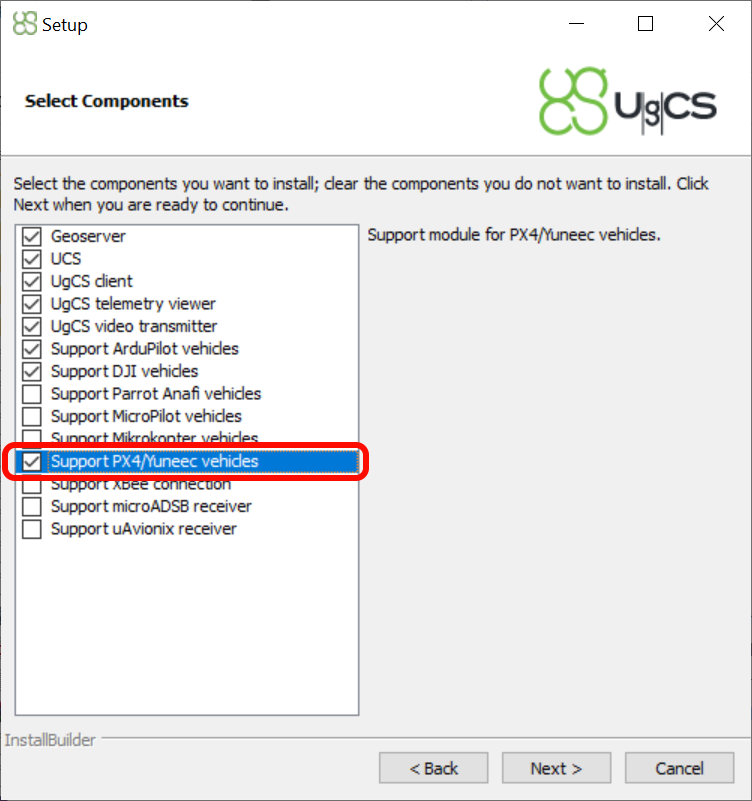
UgCS installation Support for PX4 based vehicles#
Configure
UgCS PX4 VSM. Openvsm-px4.confin a text editor with administrator privileges. The file is located in the UgCS installation folder (default pathC:\Program Files (x86)\UgCS\bin). Find, uncomment, and adjust the following settings if needed.
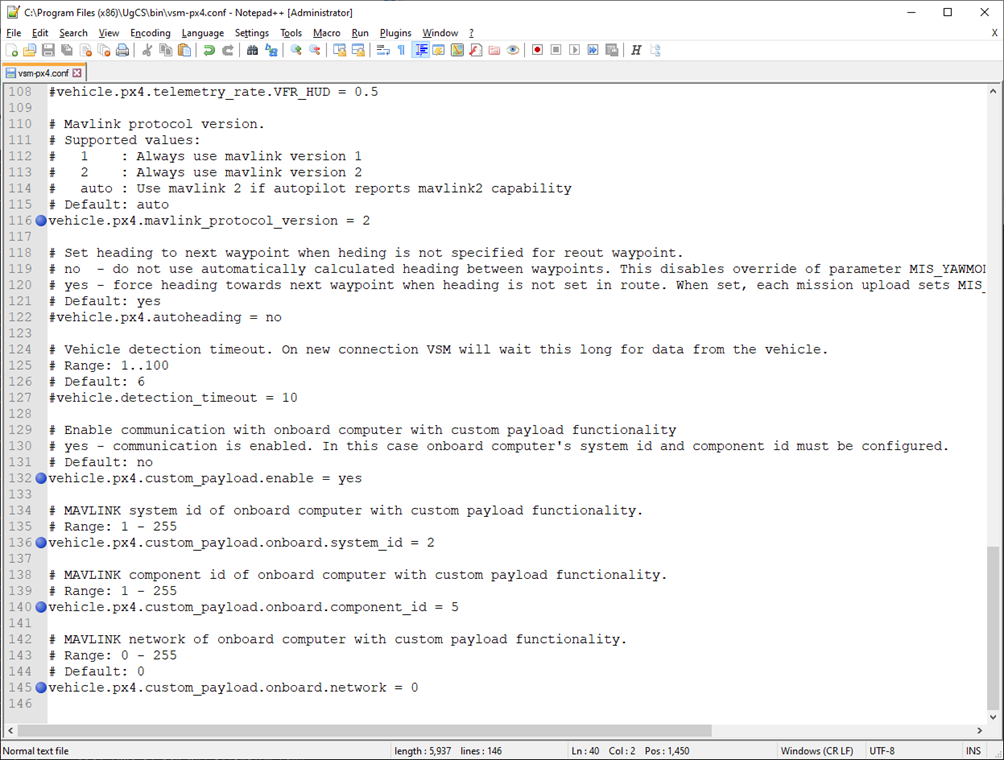
PX4 VSM configuration file#
Connect the SkyHub to the drone and power on the system.
Launch the UgCS-CPM software on your computer.
Navigate to “Settings”, from the drop-down list select “SkyHub Autopilots” and enable “MAVLINK”.
Note
Only one autopilot may be enabled at a time. In this case, DJI should be disabled.
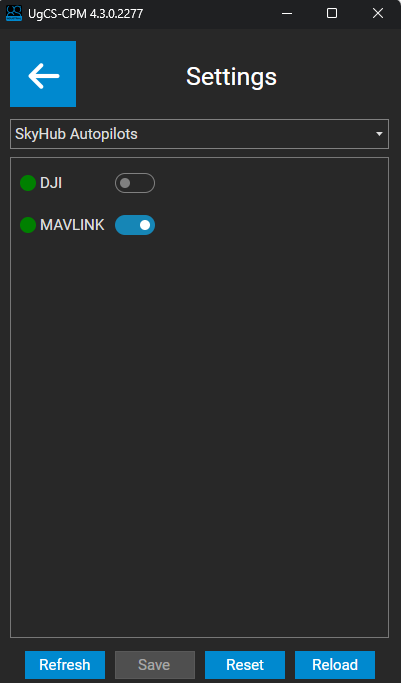
MAVLINK autopilot#
Restart SkyHub.
Make sure that the UgCS PX4 VSM parameter
vehicle.px4.custom_payload.onboard.component_idis equal to theComponent IDvalue in the MAVLink settings within the UgCS-CPM.Make sure that the V2 Extension parameter is enabled.
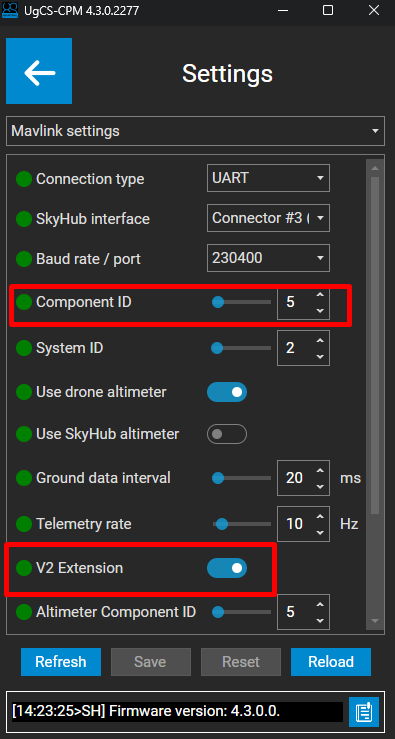
MAVLINK settings#
If SkyHub is connected to telemetry port 2, open the QGroundControl application, then go to Parameters -> MAVLink and set the parameter
MAV_1_CONFIGtoTELEM2.
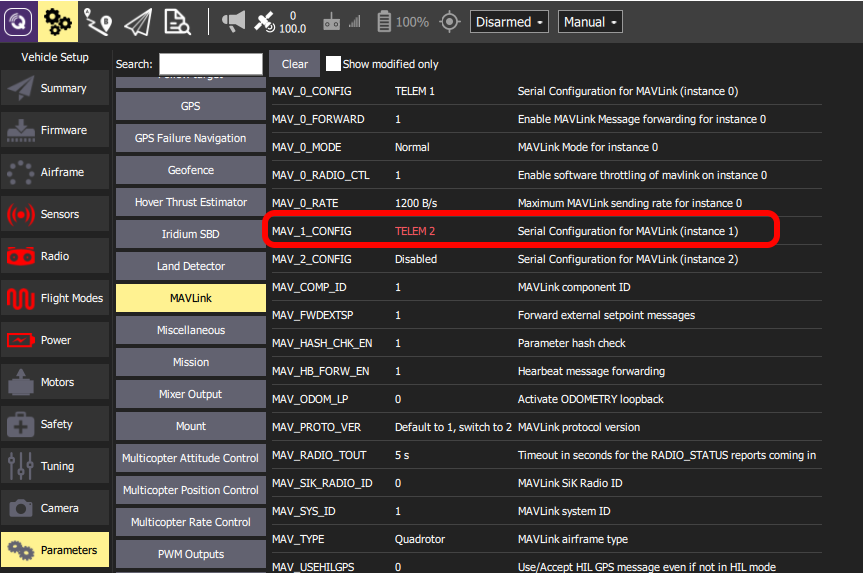
SkyHub PX4 TELEM2 port configuration#
Restart the autopilot.
After restart, data forwarding for
TELEM2autopilot telemetry ports should be enabled. Set the parameterMAV_1_FORWARDto1.

SkyHub PX4 TELEM2 port data forwarding configuration#
Change the baud rate for the TELEM2 Serial Port (recommended 230400). Speed should be the same as configured on the SkyHub side in the MAVLink settings within the UgCS-CPM.
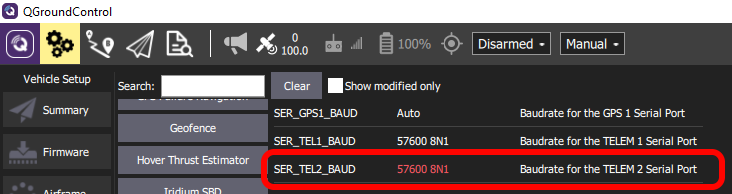
SkyHub PX4 TELEM2 port baudrate configuration#
Note
SkyHub subscribes to the following MAVLink messages with telemetry rate defined by the Telemetry rate parameter in the MAVLink settings within the UgCS-CPM:
GPS2_RAW; GPS_RAW_INT; GLOBAL_POSITION_INT; ATTITUDE; SYSTEM_TIME; HEARTBEAT; DISTANCE_SENSOR
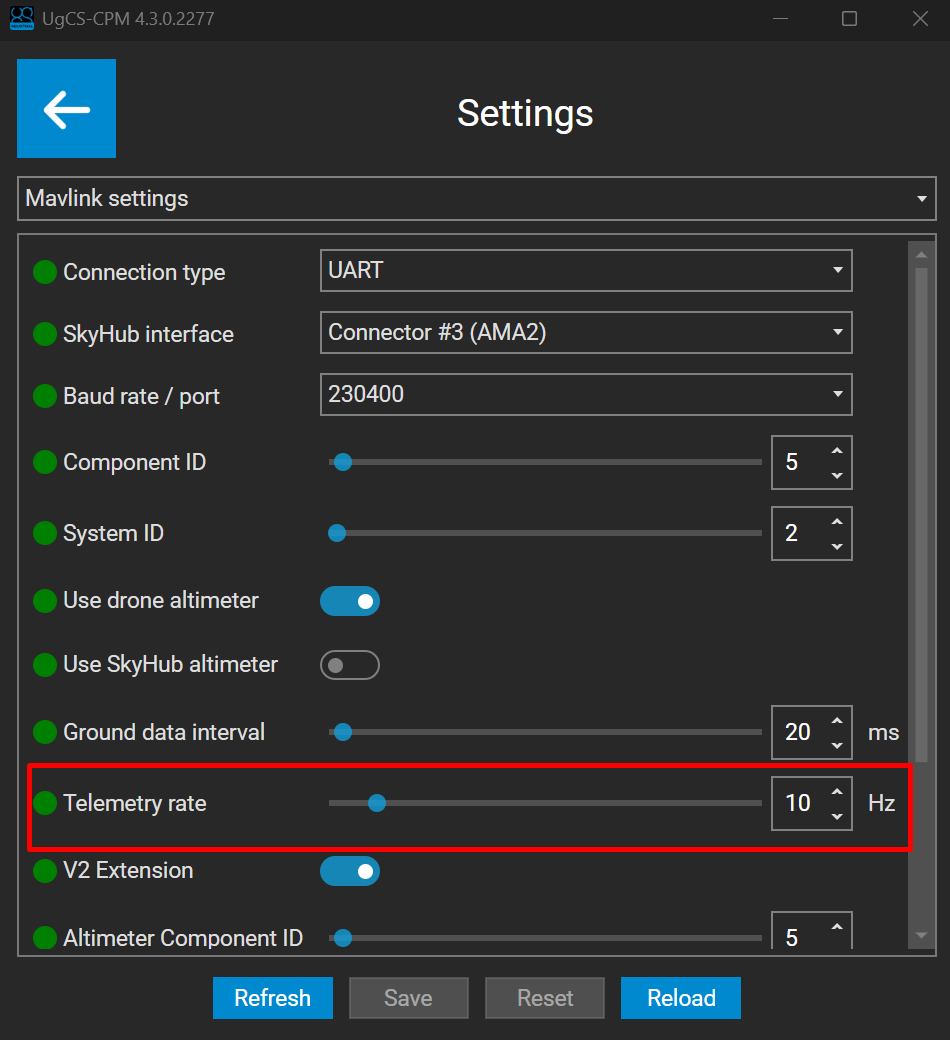
Mavlink telemetry rate#