3. Log Files Management#
3.1. Access to the log files#
Establish an Auxiliary connection to the SkyHub using Wi-Fi or through the Ethernet cable. See Preparation guide for instructions.
When the Auxiliary connection is established, launch the UgCS-CPM software.
Click on the “Tools” section.
From the drop-down list select the “Logs management”.
3.2. Data download#
Press the Browse button to choose the destination folder for log files.
Select the desired date and file extensions you wish to download.
Press the “Download” button and wait for the process to complete.
Note
After the log files are no longer needed, you can delete them all using the “Erase All” button.
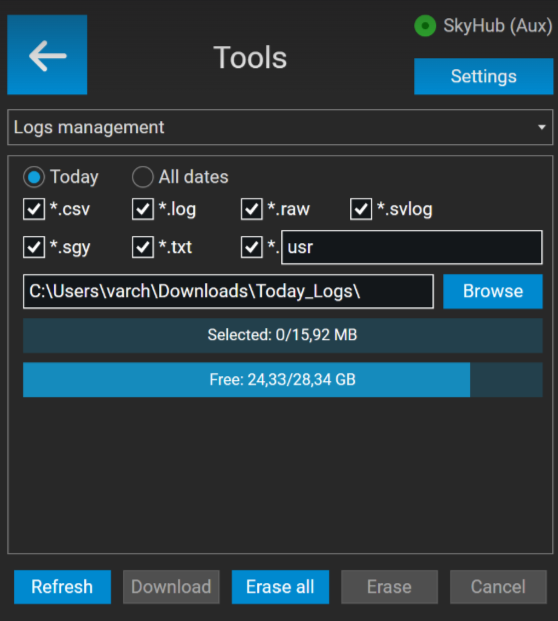
UgCS-CPM Log management window#