1. True Terrain Following#
1.1. Hybrid route#
In a hybrid route, it is possible to combine waypoints and segments with different altitude modes - AGL/AMSL for altitude navigation using GPS and Rangefinder for altitude navigation using an altimeter. AGL/AMSL altitude can be used in parts of the route where it is necessary to fly over obstacles or very uneven terrain, where flight using an altimeter would cause a lot of ascending and descending. Rangefinder altitude is used for TTF segments where it is necessary to maintain altitude using an altimeter for data collection.
Note
It is recommended to set AGL/AMSL altitude at least 5 m above the digital elevation map.
Warning
Attention: due to elevation model error, real AGL altitude may differ from expected.
Use additional waypoints to create a smooth transition from AGL/AMSL to Rangefinder altitudes. For accurate altitude transition, it is recommended to set the turn type to Stop & turn.
Example:
Waypoint#1 - AGL 20m;
Waypoint#2 - AGL 5m;
Waypoint#3 - Rangefinder 3m;
Waypoint#4 - Rangefinder 1m.
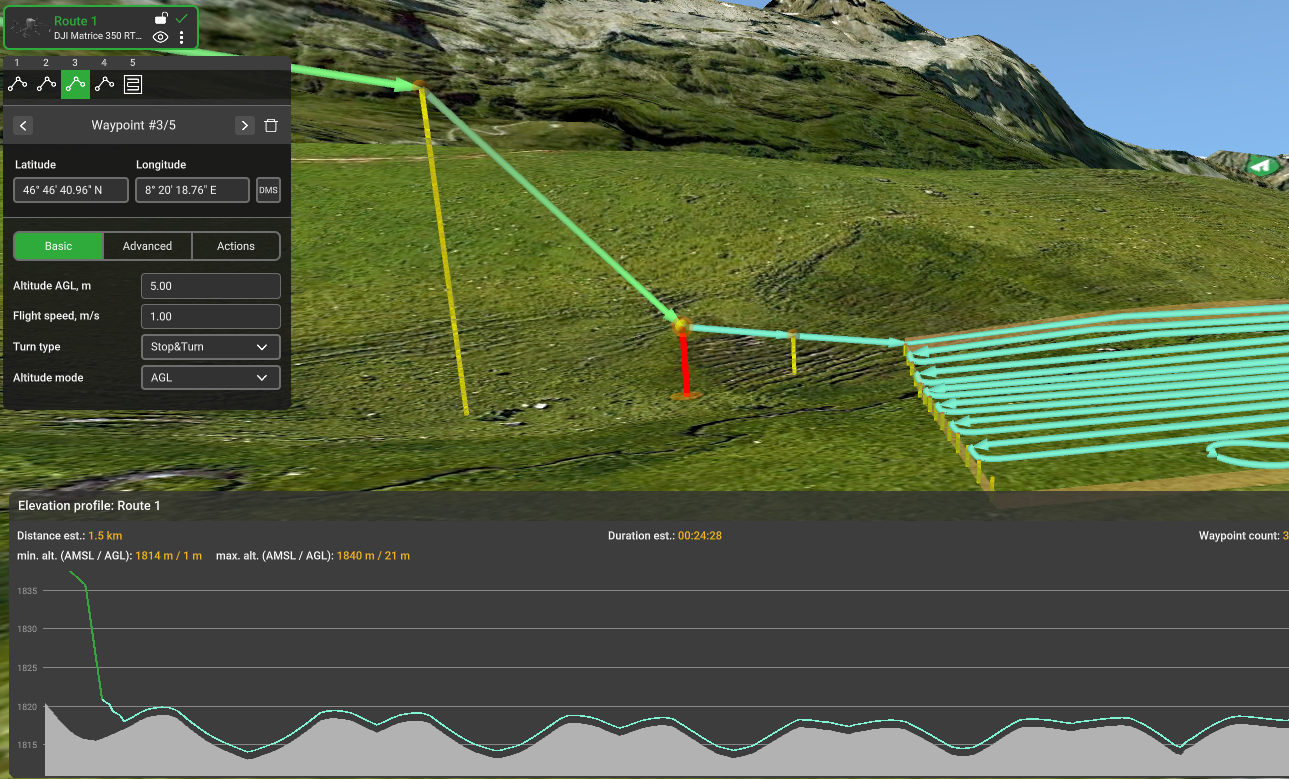
Transition from AGL to Rangefinder mode#
Note
For the mission to be uploaded to the SkyHub, at least one waypoint or segment of your route must be in the Rangefinder mode. Otherwise, the mission will be uploaded to the DJI autopilot.
1.2. Rangefinder route#
If flight specifics require that flight altitude is maintained using an altimeter during the entire route from the start position, Rangefinder altitude can be used on all route segments.
The drone will take Rangefinder altitude using the altimeter immediately after Terrain Following activation and move to the first position on the route while maintaining this altitude.
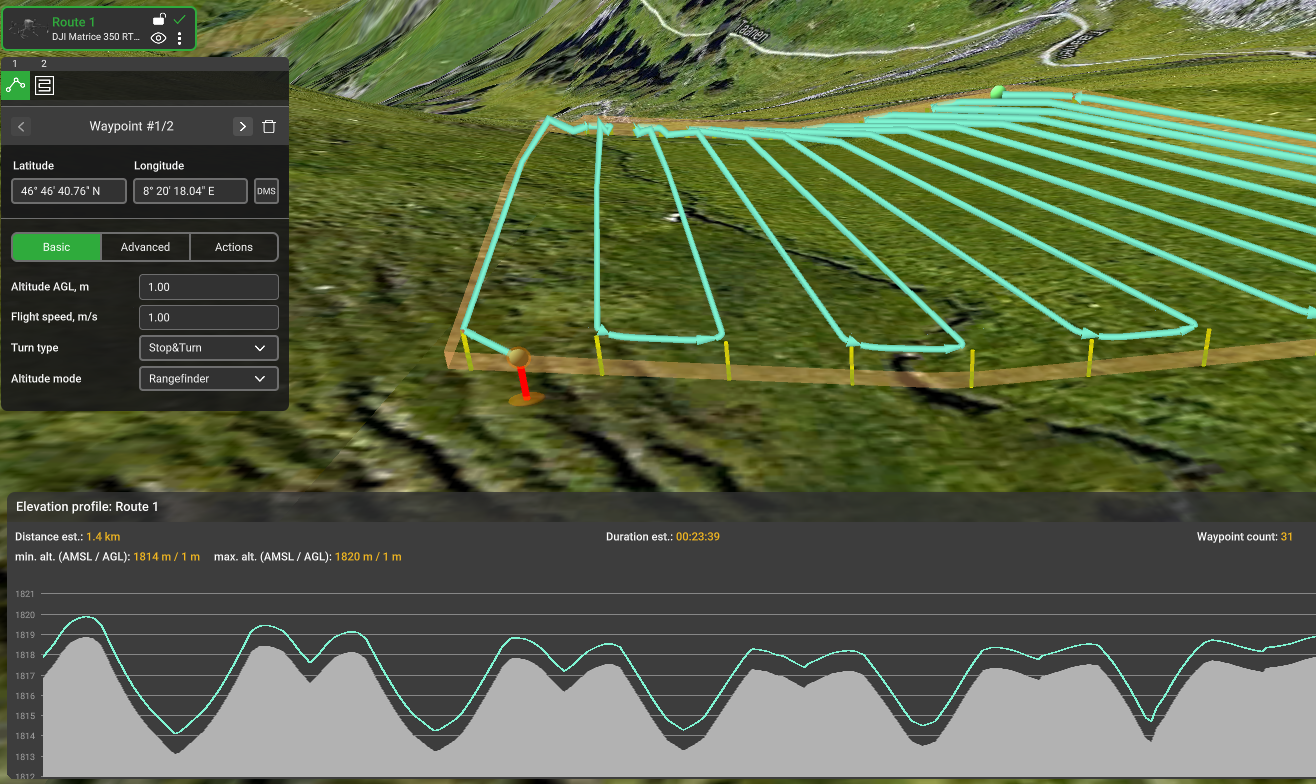
Route with all segments with Rangefinder altitude#
1.3. Flight process step by step#
Connect your PC to the Wi-Fi network. Start the UgCS flight planning software on your PC and plan a mission for the drone.
Ensure that SkyHub and all payload devices are properly connected to the drone.
Turn on the DJI Remote Controller and connect it to the same Wi-Fi network as the PC.
Note
If you are using the DJI RC Plus controller, make sure that the switch is in the N-mode.
If you are using the DJI Smartcontroller, make sure that the switch is in the P-mode.
Run the UgCS Companion mobile application on your remote controller. Wait for the application to show the main window and connect to UgCS on your PC.
Ensure that the drone with a correct profile appears in the UgCS on the PC and drone telemetry (battery, uplink, downlink, satellites) are present.
Ensure that only the used payloads are enabled in the UgCS-CPM Payloads section. Each payload should be properly configured, following the sensor setup guide.
Note
Before the flight, you can erase old data files from the SkyHub if they are no longer needed (see Log Files Management for details).
Check if the UgCS, Drone, and SkyHub indicators are green. Add the Terrain Following widget and other widgets related to connected payloads by clicking the “plus” button.
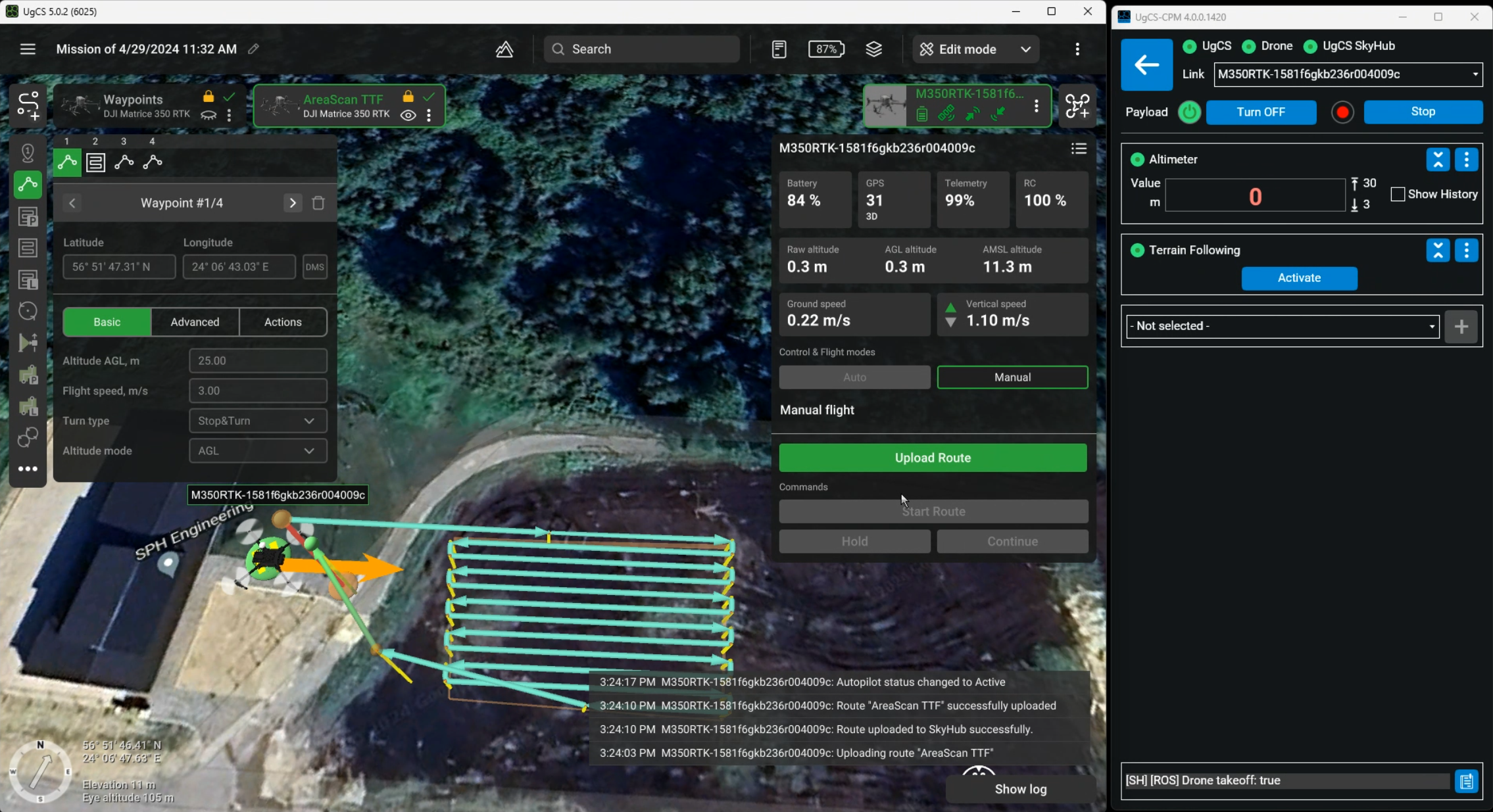
UgCS and UgCS-CPM application open side-by-side#
Check the Altimeter widget, it should displays the altimeter data.
Note
While stationary, radar altimeter will display the random readings. This is expected behaviour, since it must be in a motion to get the true readings.
Check the altitude Min/Max limits in altimeter widget settings.
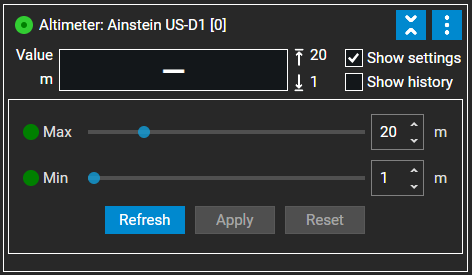
Altimeter Min/Max value setup#
Note
If during the flight, altimeter will receive the readings that are below the minimum or above the maximum values you set, failsafe action will be triggered.
Check and configure Safe altitude in True Terrain Following widget settings.
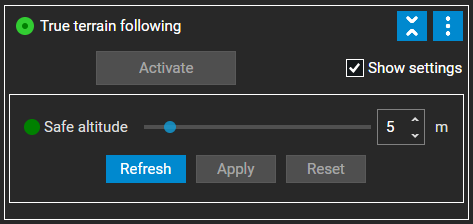
Altimeter safe altitude setup#
Note
During the failsafe, the drone will ascend to the safe altitude value you selected and execute a chosen failsafe action.
Warning
Failsafe may be triggered:
During TTF activation. If at the moment, the drone is higher or lower than min/max altitude.
If the altitude readings during the flight are below min. altitude (the drone is too close to the ground or obstacle).
If the altitude readings during the flight go above the max. altitude (sudden elevation changes).
If the SkyHub stops receiving the data from the altimeter.
Create / verify route in UgCS. All route altitudes must be in altimeter min / max range limits.
Warning
Attention: For Hybrid route AGL and AMSL waypoints are navigated using GPS. SkyHub altitude safety check will trigger failsafe if drone flying to AGL or AMSL waypoint will go below the configured altimeter minimum value MIN_ALTITUDE_M + 2m.
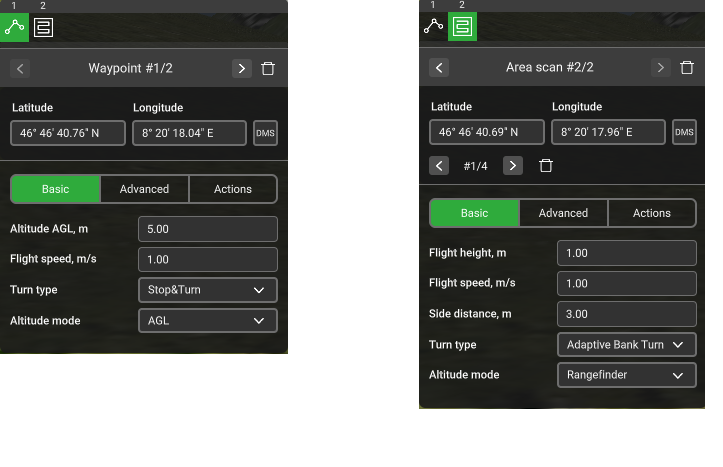
First waypoint / Area scan segment with Rangefinder altitude configured#
Warning
Attention: It is strongly recommended not to set Target Altitude more than 10 meters for the laser altimeter above water
Attention: AGL and AMSL waypoints are navigated using GPS. SkyHub altitude safety check will trigger failsafe if drone flying to AGL or AMSL waypoint will go below Altimeter Min value + 2m.
Upload the route to the drone using
Upload Routecommand in UgCS.Perform manual takeoff using the DJI Remote Controller and rise up to the appropriate altitude (see limits from step 8).
Manually fly the drone close to route start position.
There are three ways how to activate True Terrain following flight:Press Start in UgCS Companion application
Move the flight mode switch from N-Mode then to F-mode
Press the Activate button in the Terrain Following widget
You may interrupt the flight by moving the flight mode switch from
F-Mode then toN-mode, or by pressing the Pause button in UgCS Companion application or in True Terrain Following widget (UgCS-CPM).
The flight can be resumed by moving the flight mode switch to N-mode then to F-mode, or by pressing the Resume button in UgCS Companion application or in True Terrain Following widget (UgCS-CPM).
During pause you may manually control the drone, for example fly around an obstacle. In this case the drone returns to the nearest not completed point on the route by the shortest way after resuming.
Warning
Attention: the flight mode on the DJI Remote Controller must be obligatory switched back to N-mode before manually control. Otherwise, the drone returns to an unexpected resuming point.
Note
If the DJI M400 stops mid-flight during a TTF route and cannot be controlled manually using the RC, the following actions can be taken to regain manual control:
Press the Pause button on the DJI RC Plus 2 (yellow button with the pause symbol)
Press the Manual Mode button in UgCS
If the drone descends below the minimum allowed altitude or ascends above the maximum allowed altitude (see step 8), it stops, then climbs to safe altitude. Safe altitude can be configured in True Terrain Follwing widget settings. You may manually correct drone position and resume the flight according to recommendations at step 14.
After the mission has been completed the drone stops at the last waypoint then climbs to increase its altitude to value configured in True Terrain Following widget settings.
Switch the flight mode to
N-Mode to take control, then return the drone to the desired landing position, and land the drone manually.Download the flight results (see Log Files Management).