2. Factory Reset#
Note
Factory reset can be performed only over the auxiliary connection. Connect to SkyHub directly over the WiFi or Ethernet to proceed.
Establish Auxiliary connection to the SkyHub.
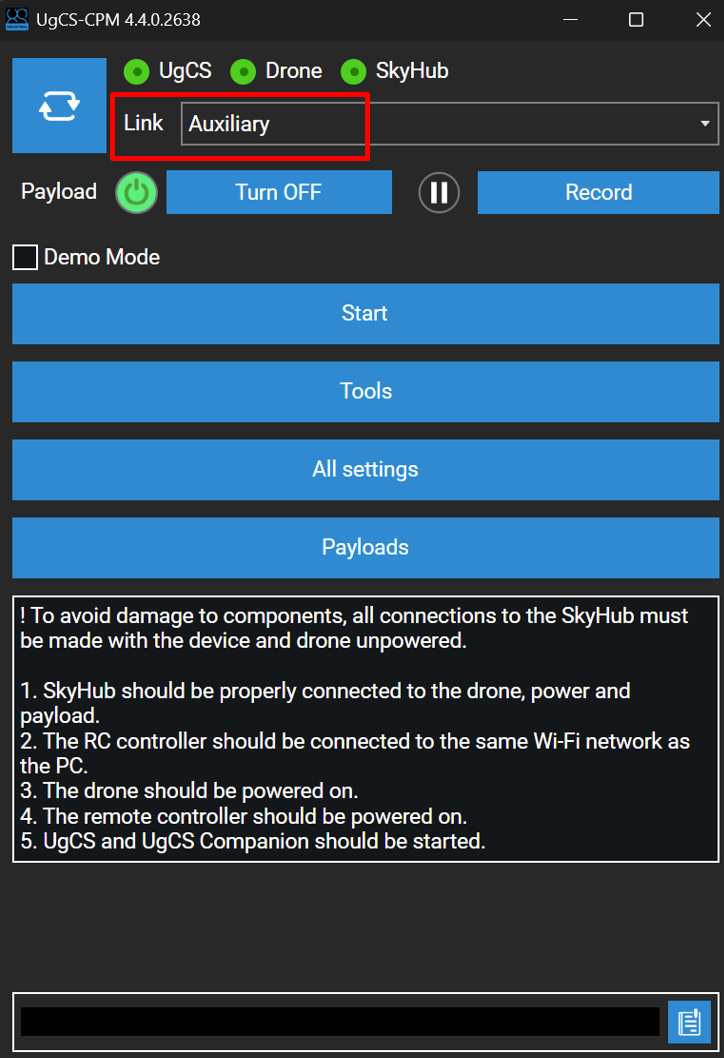
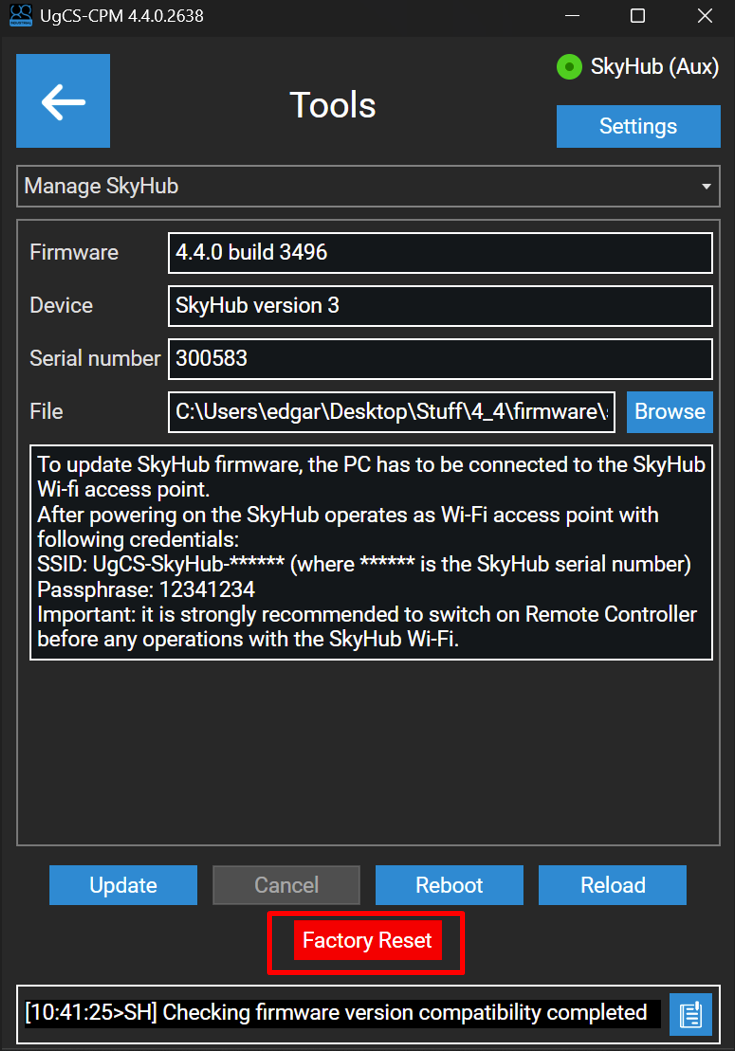
Next, navigate to the “Tools” section, and from the drop-down list select the “Manage SkyHub” section.
Next, press the red “Factory Reset” button.
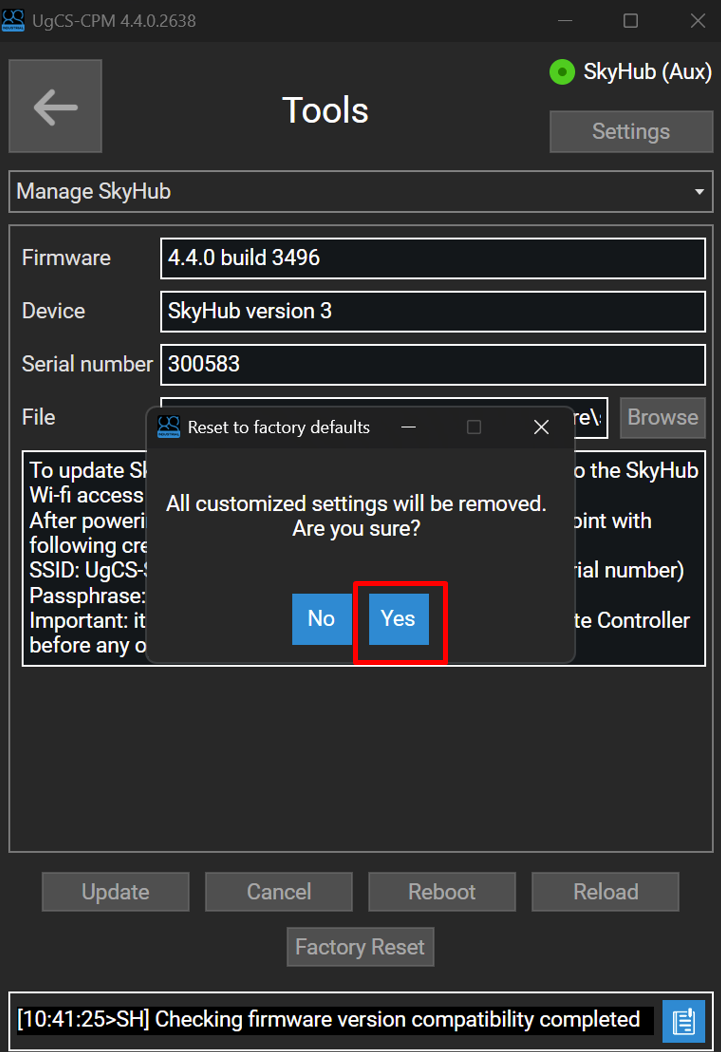
Confirm the reset.
Warning
Factory reset process will delete existing SkyHub configuration file, and create a new, default configuration instead.
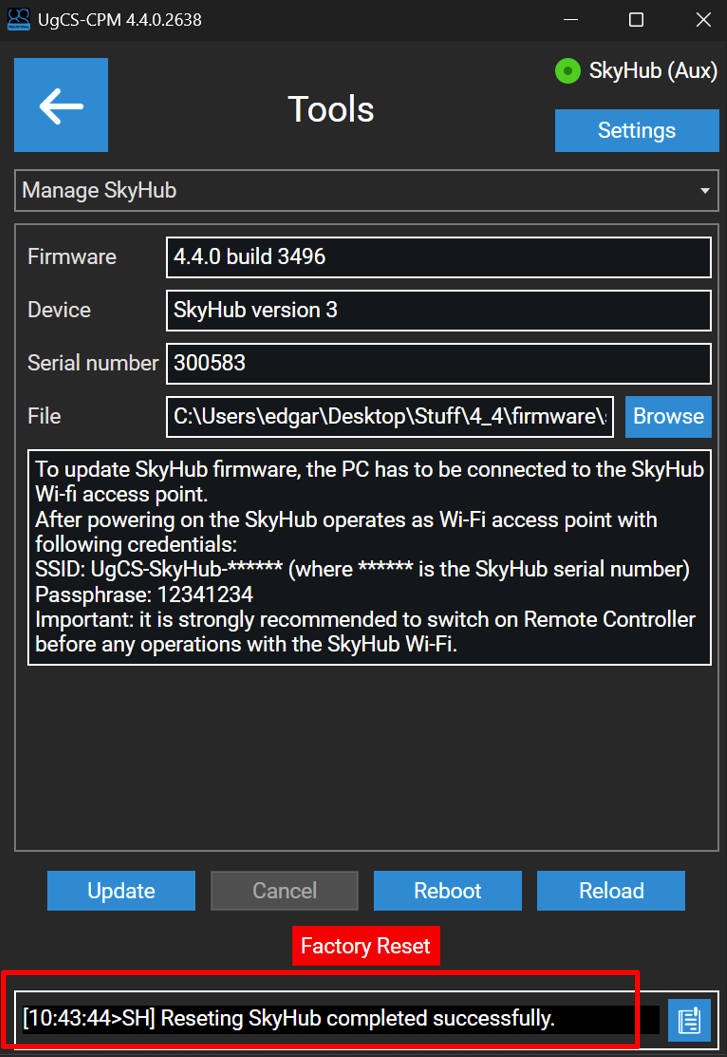
After the confirmation, reset process will begin. It may take a few minutes, make sure to wait for the confirmation message before moving on.
Warning
It is important to wait for the confirmation message before proceeding with the configuration. If, the process will be interrupted, it it will be necessary to initiate the reset one more time.
Factory reset is complete. You can now proceed with the autopilot and payload configuration.