1. Quick Start: DJI M400 RTK#
1.1. Hardware requirements#
DJI M400 drone
SkyHub V3 (with mounting kit)
SkyHub 3 smart cable with the mounting bracket
Altimeter (laser or radar)
1.2. Software requirements for the Windows PC#
UgCS v5.14.0 or higher (referred to below as UgCS)
UgCS Custom Payload Monitor v4.4.0 or higher (referred to below as UgCS-CPM)
1.3. Software requirements for the Remote Controller#
DJI Pilot 2 (to disable built-in obstacle avoidance sensors and RTK configuration)
1.4. Network requirements#
Any Wi-Fi/hotspot to connect the Remote Controller and the Windows PC within a single network.
1.4.1. UgCS desktop download and setup process#
Download the installation package: https://www.sphengineering.com/flight-planning/ugcs-downloads
Run the setup file.
Read and acknowledge the license agreement.
In the component selection tab, you can select additional autopilot support (if necessary).
Installation complete.
1.4.2. UgCS Custom Payload Monitor download and setup process#
Download the latest available CPM version here: https://www.sphengineering.com/integrated-systems/downloads
Run the setup file.
Select the SkyHub license file for the SkyHub you will be using.

Read and acknowledge the license agreement.
Installation complete.
Note
If you do not have a license file or need a new one, please reach out to us at support@ugcs.com and provide your SkyHub serial number.
1.4.3. SkyHub installation on the drone#
Warning
Power off the system when connecting cables. To avoid short-circuiting or causing potentially harmful power fluctuations, it is recommended to power off the entire system before performing any cable plug-in or unplugging. Some of the payload sensors used are extremely sensitive to power changes and may be damaged.
1.5. Components#
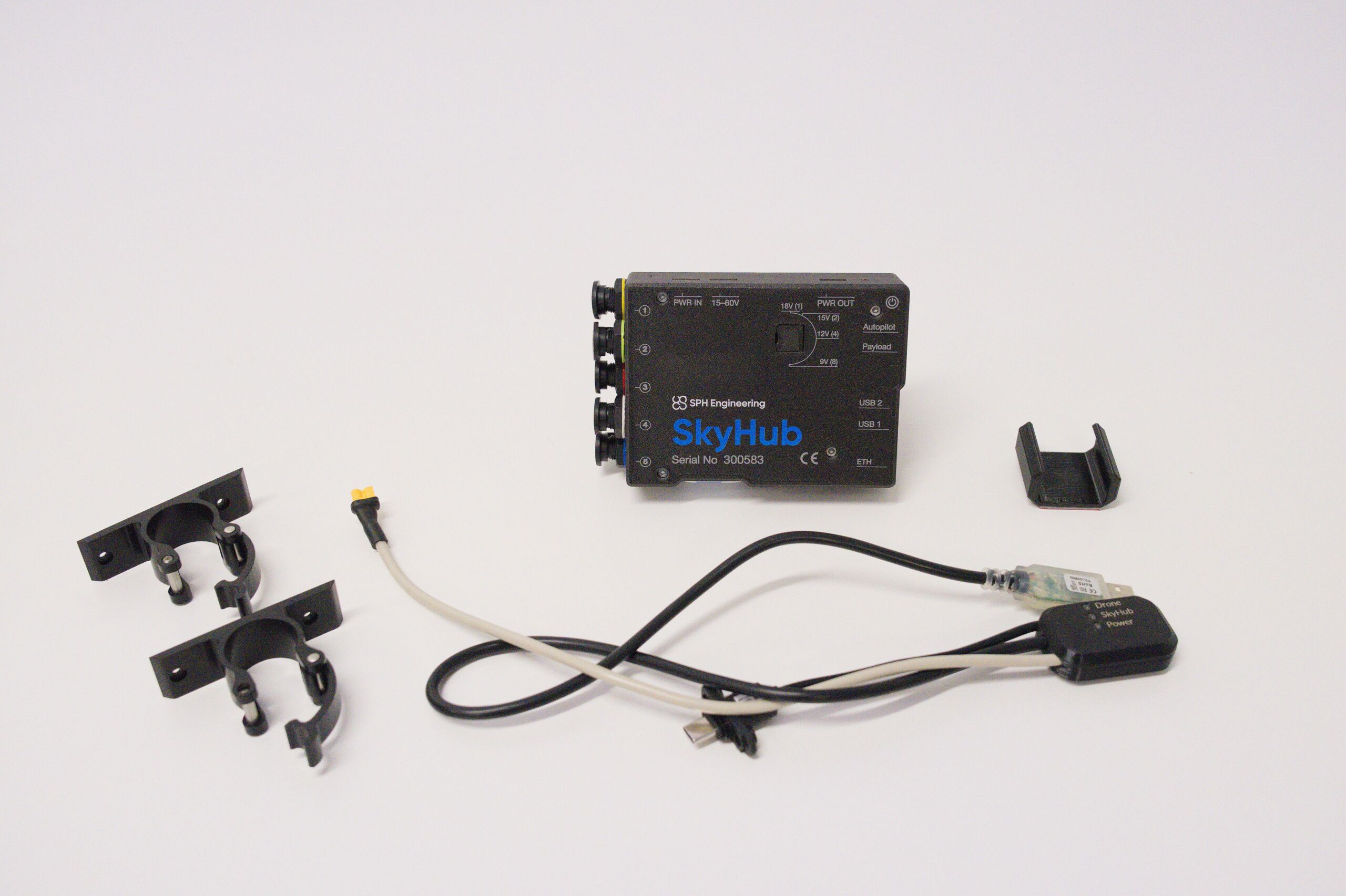
SkyHub assembly kit contains the following components:
SkyHub onboard computer
2x SkyHub case mounts
DJI M400 connection cable with mounting bracket
1.6. Physical assembly#
Attach both mounting kits on the back side of the SkyHub.
Place the cable bracket somewhere between the drone arm and leg. This will provide optimal distance to connect the rest of the cables during further setup.
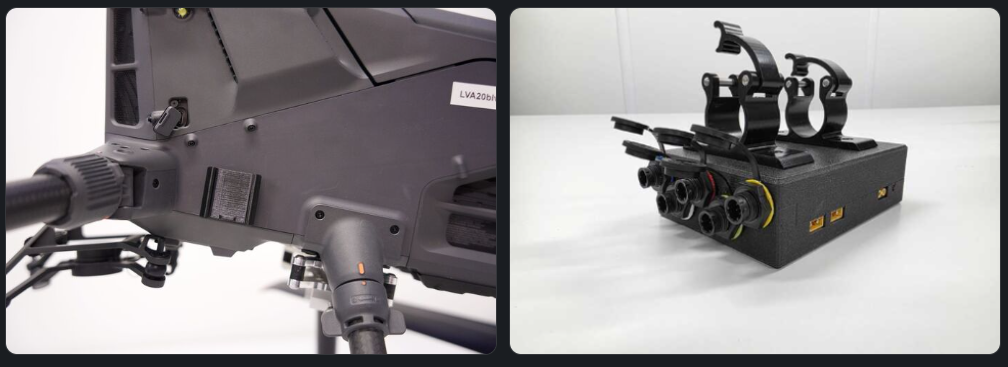
When mounts are in place, attach the SkyHub to the leg of the drone and put the cable in the bracket.
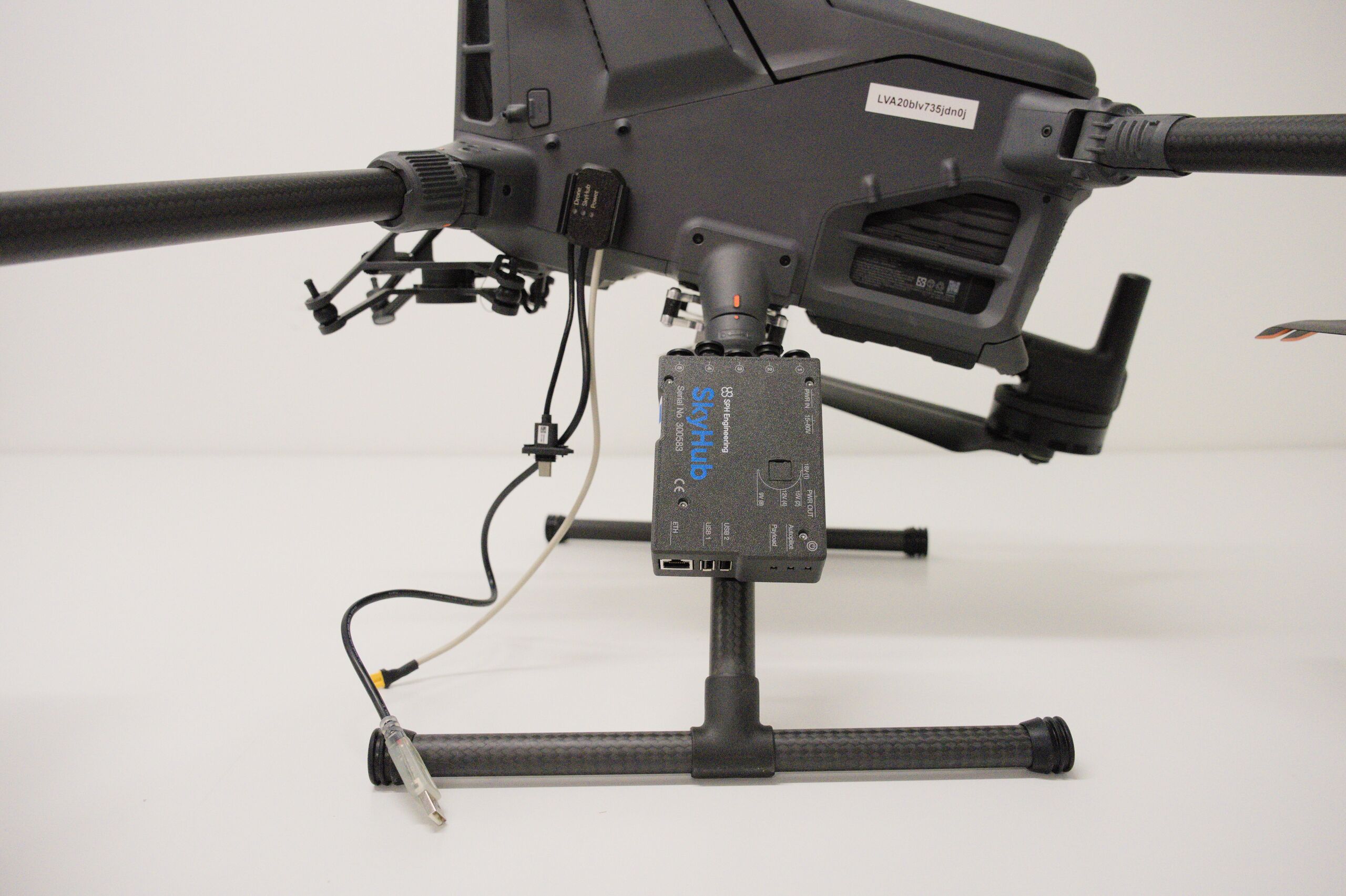
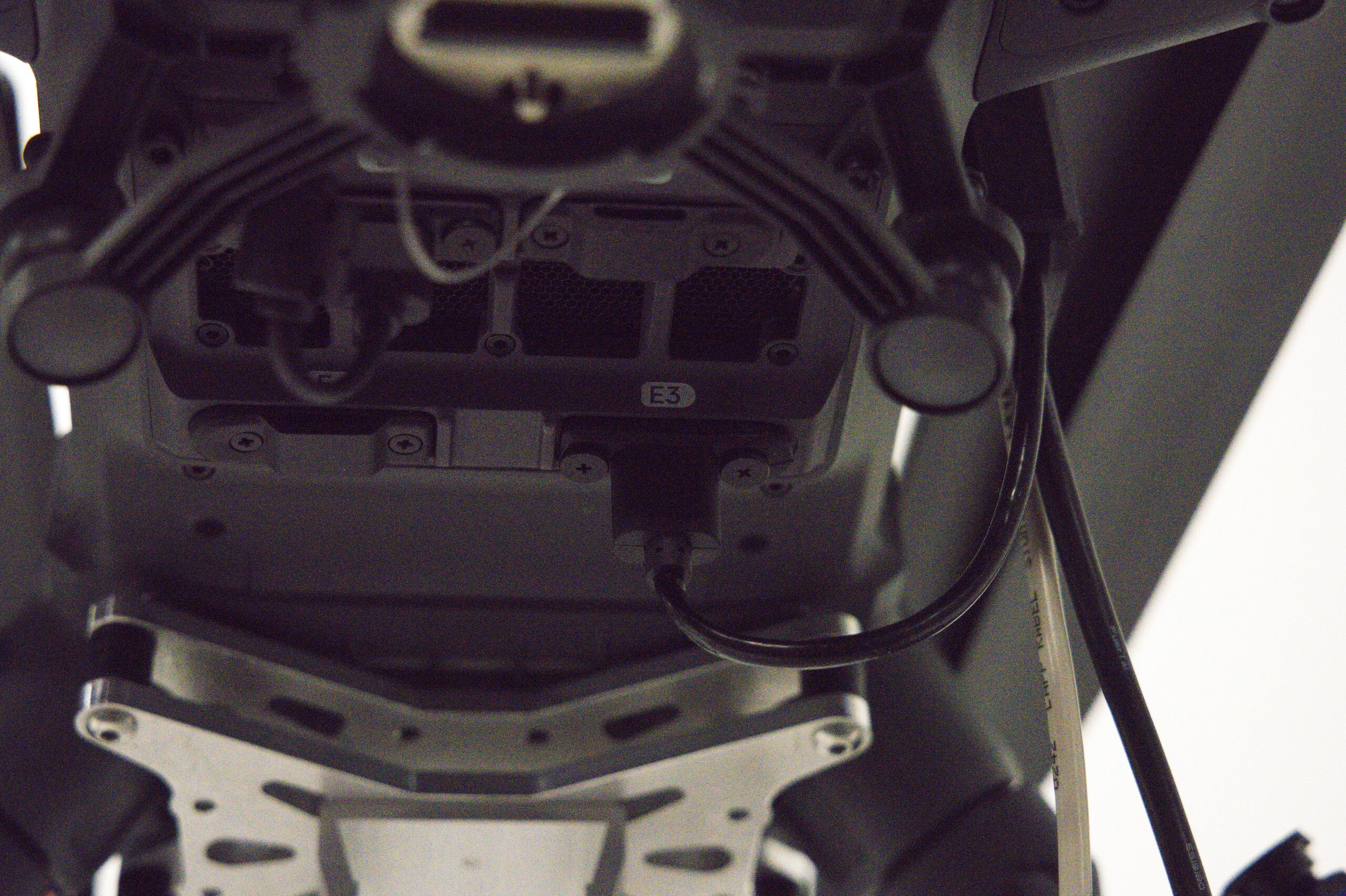
Attach the DJI PSDK connector to the E3 port beneath the drone.
Attach USB and power cable to the SkyHub.
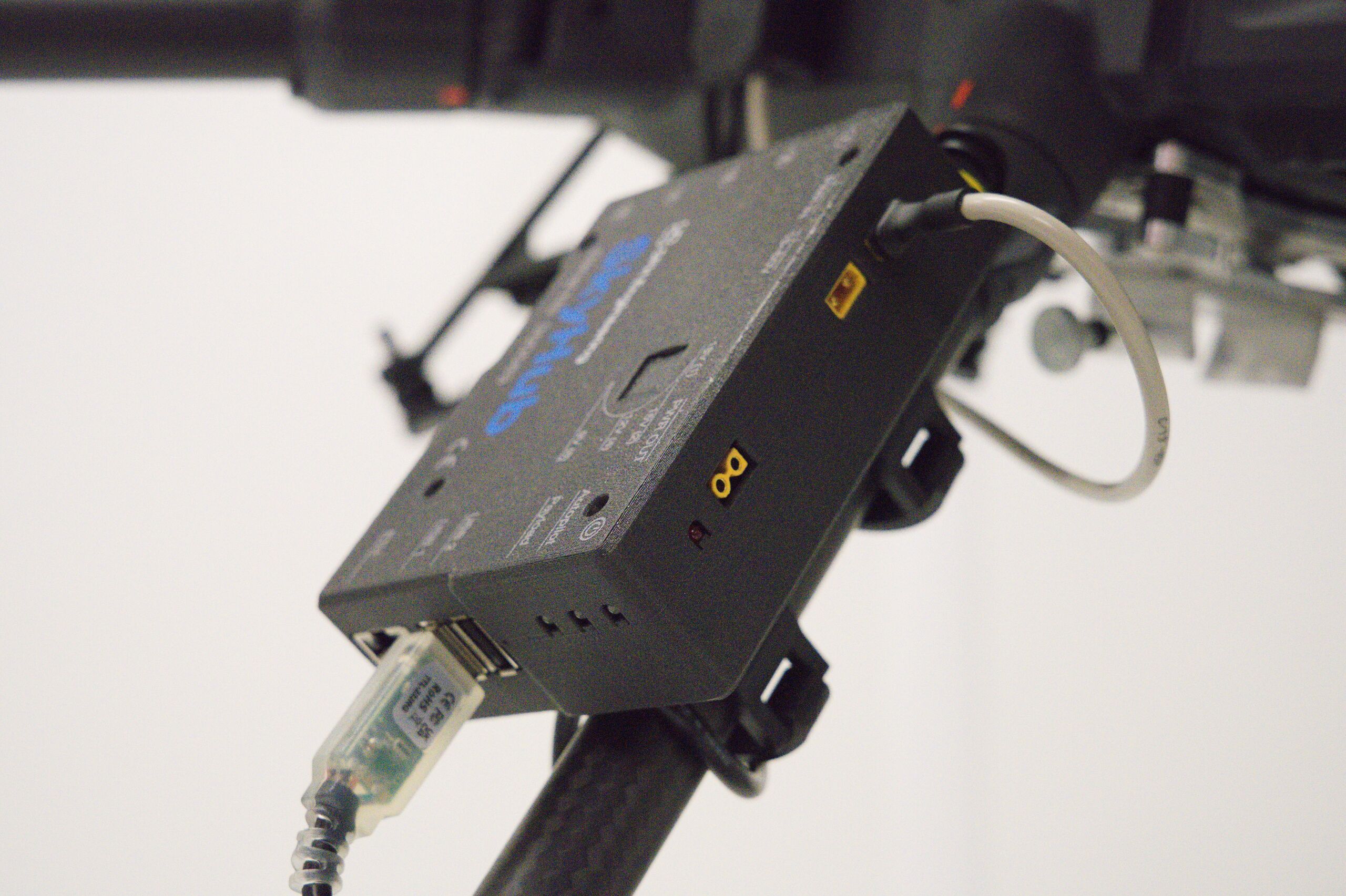
Physical assembly of the SkyHub is complete. Check that all the connectors are secured tightly, with no loose movements.
1.6.1. Altimeter installation on the drone and connection to the SkyHub#
To install the altimeter sensor on the DJI M400, use the mountings provided with the sensor.
For your convenience, we have a library with 3D models you can download and print yourself in case the default ones are broken or missing: https://files.ugcs.com/s/fMpj5LJpobWeMFi
Slide the plastic ruller on the front of the gimbal and tigthen it with the two screws.
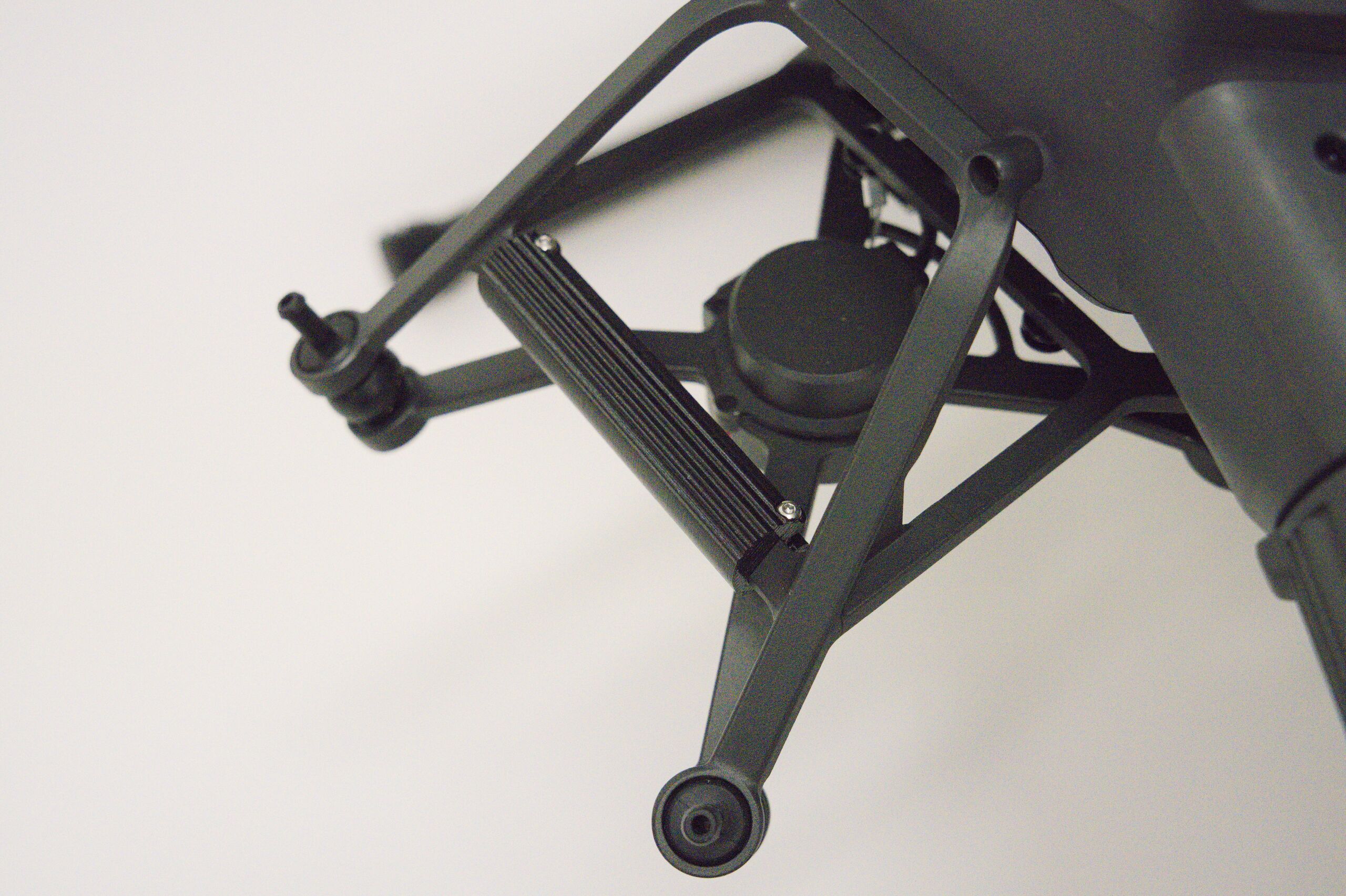
Slide the altimeter vertically on the previously attached ruller.
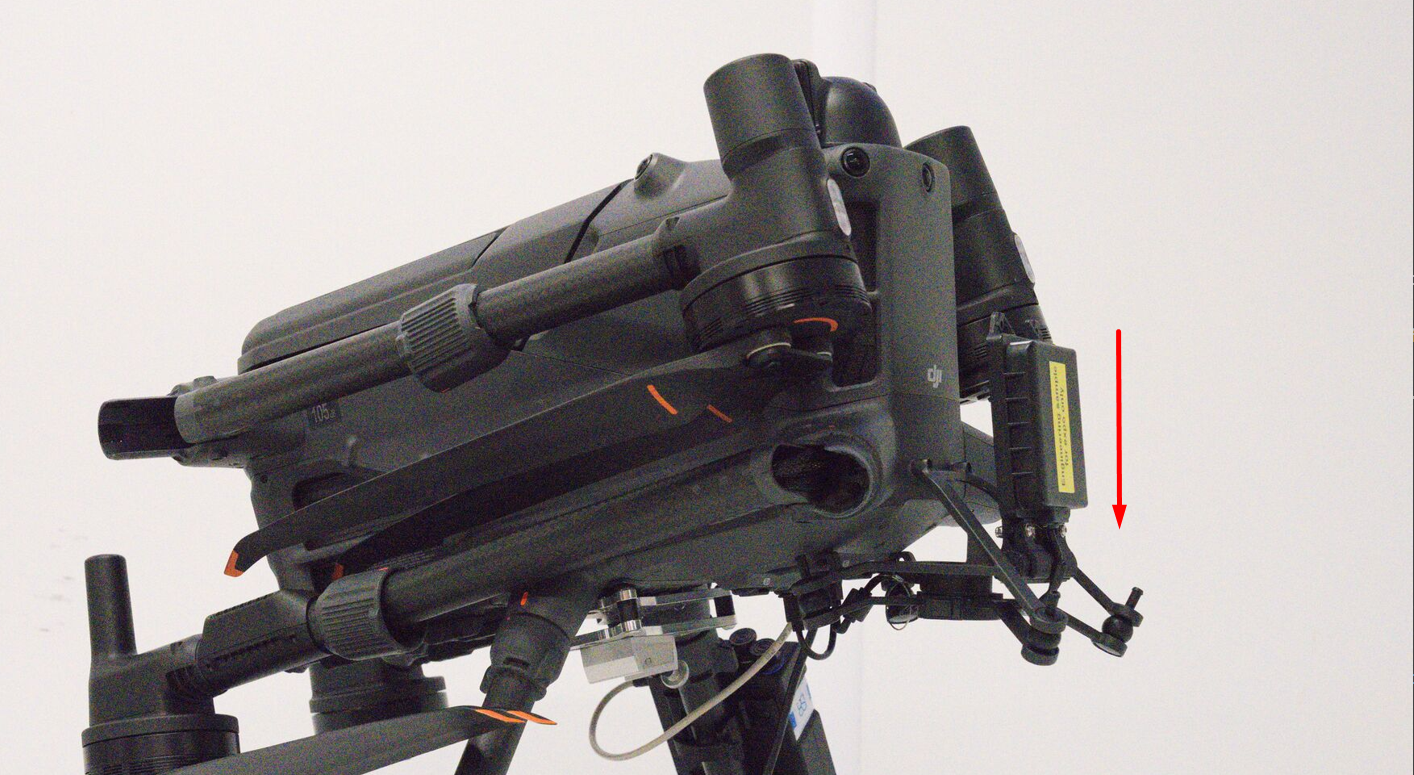
Adjust the altimeter position by rotating it downwards or upwards.
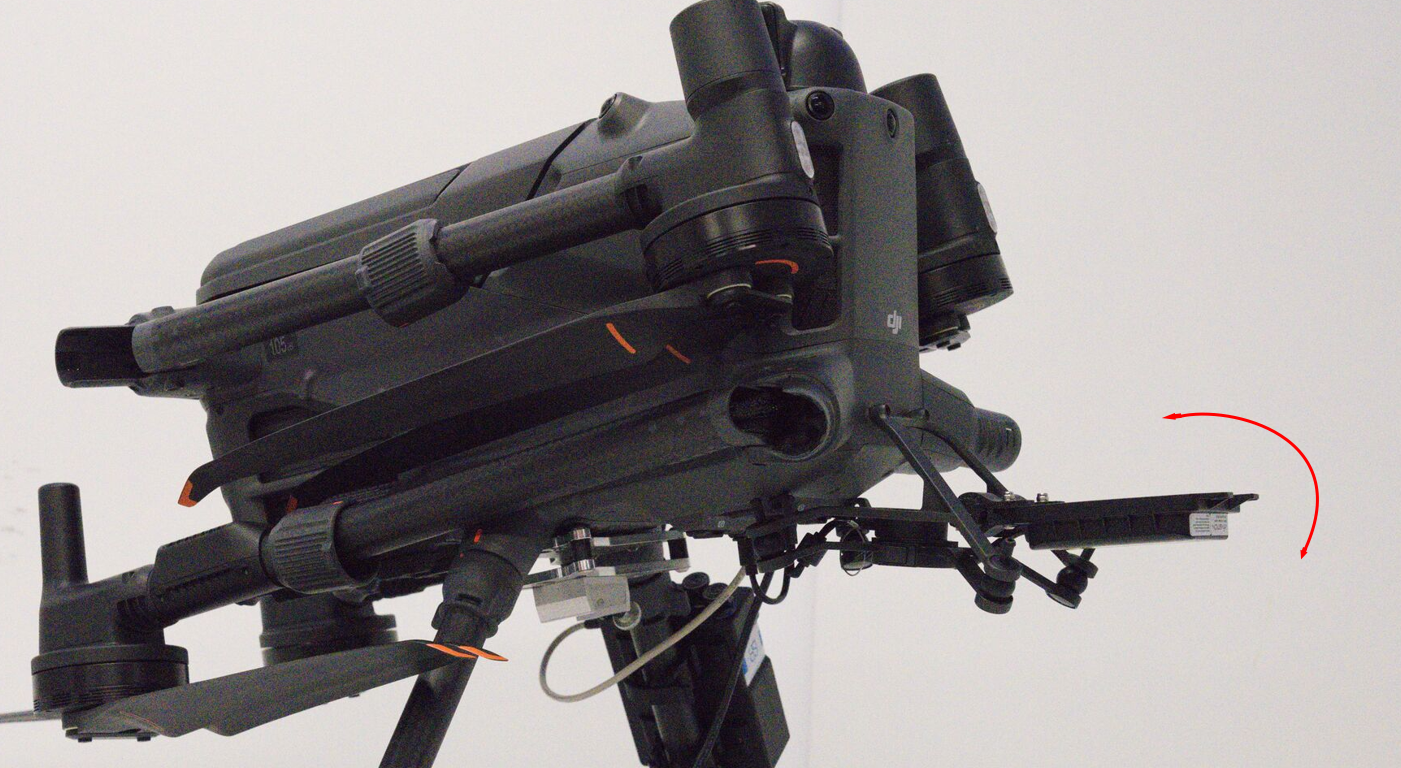
Note
If you wish to detach the sensor, simply perform the same action in reverse. Place the altimeter in the vertical position and slide it up from the gimbal.
Connect the cable to Connector 1 (yellow) on the SkyHub.
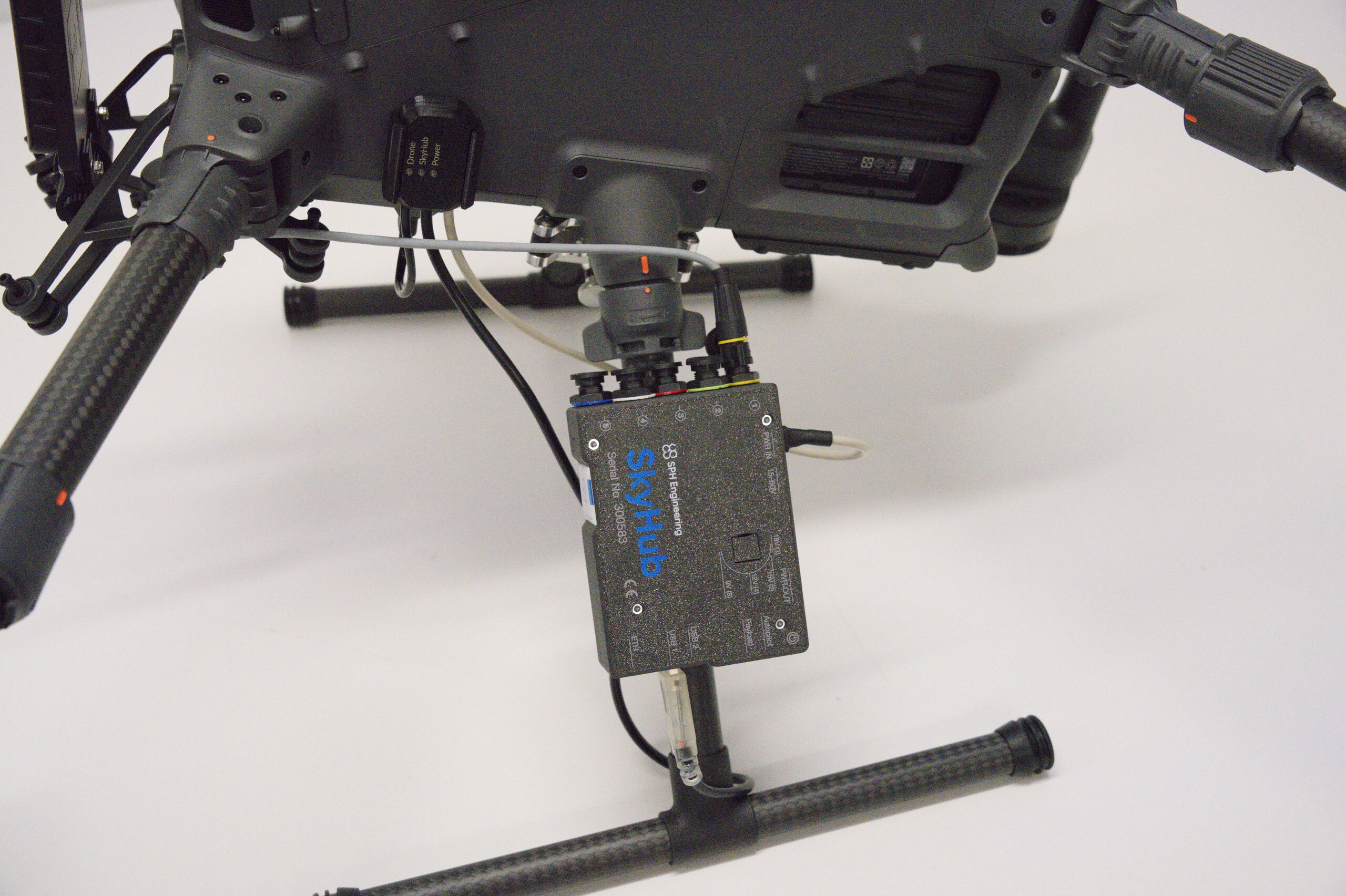
Setup is complete. You can now proceed with the widget configuration.
1.6.2. Altimeter / Autopilot configuration within the CPM software#
Before proceeding further, power on both the drone and remote controller. Then, make sure that your computer and the controller are connected to the same network. This is required to establish the drone link connection between CPM on your computer and SkyHub on the drone.
Note
SkyHub will take a little more time to fully boot up. You can check whether it is ready by the indicator within CPM. As soon as the SkyHub indicator becomes green, you can proceed with the configuration.

1.7. Enabling the autopilot#
Press the “All settings” button.
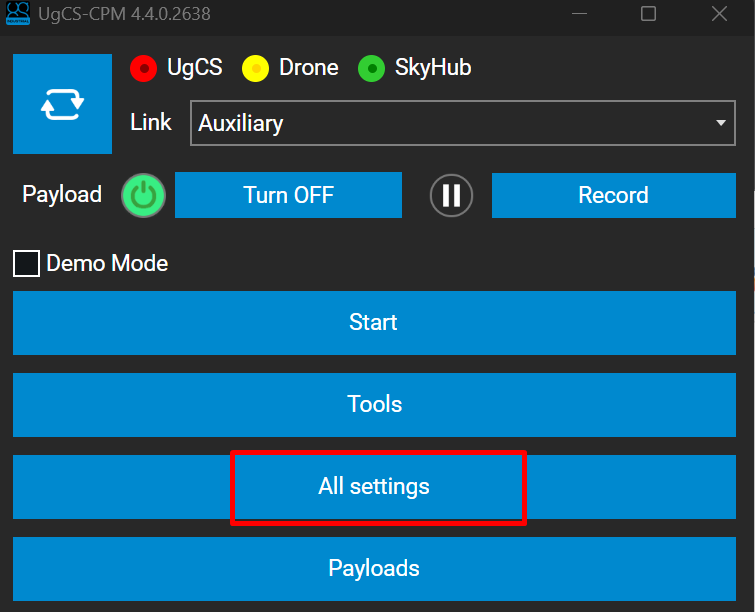
From the drop-down list, select the “SkyHub Autopilots” section.
Enable DJI M400 (note that only one autopilot can be enabled at a time). Press Save and perform a system restart.
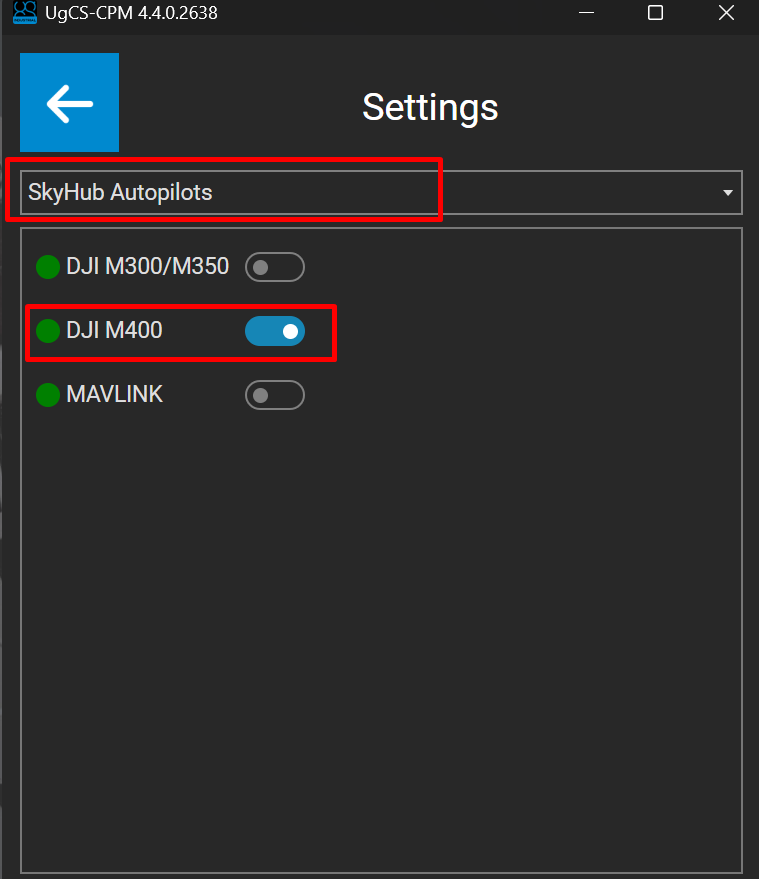
Autopilot configuration is complete. After the system restart, you will notice that the drone link icon should become green.

1.8. Enabling the altimeter#
When both drone link and SkyHub connections are established, you can proceed with the altimeter widget configuration.
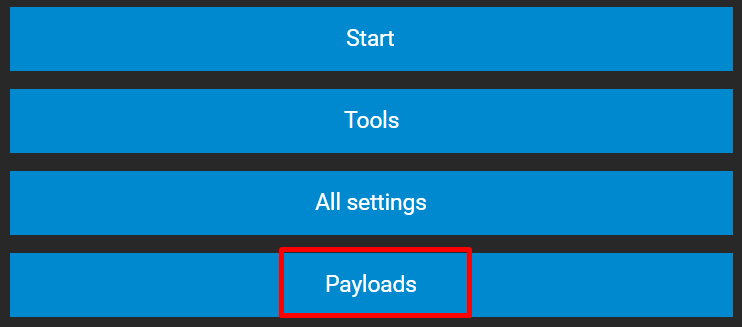
Click on the Payloads section
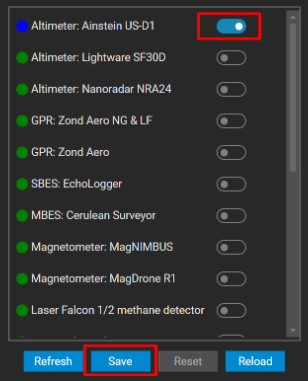
From the payload list, search for your altimeter model (in our example, it is US-D1), enable it, and press the Save button. Perform a system restart.
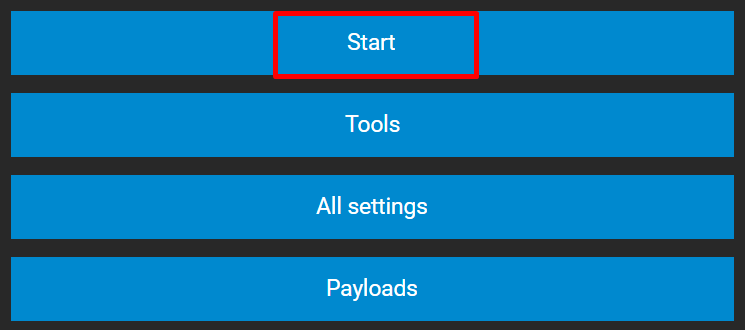
After the restart is complete, press the Start button.
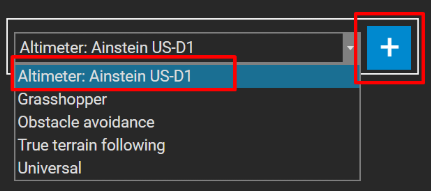
From the drop-down list, select the altimeter model you enabled previously and press the “plus” icon
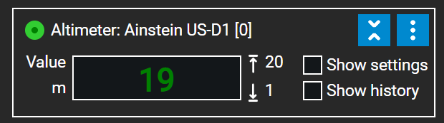
Widget configuration is complete. If everything was set up correctly, you should see the initial readings from the sensor.