1. Repeatable Survey Tutorial#
1.1. Introduction#
1.1.1. What is a repeatable survey, and why does it matter?#
A repeatable survey is a data collection method in which the same flight plan is executed multiple times, on different days. Such flights can be used to monitor terrain changes over time, as well as vegetation or environmental changes.
1.1.2. Key challenges in achieving repeatability#
The key challenge in achieving repeatability of the flight is the inconsistency of positioning precision. Another challenge is weather conditions, especially wind. If solving the second problem requires patience, solving the first challenge requires more precise positioning using RTK (Real Time Kinematics).
Now, let’s take a look at how to achieve flight repeatability in more detail. To ensure that the repeatable survey results are valid, there are a few conditions that the pilot must keep in mind. The flight path must be identical across the surveys. From the georeferencing point of view, it is better to position all the ground control points and the base station in the exact same places across all the performed flights to avoid the necessity of receiving a new set of coordinates. Lastly, it is advised, though not required, to perform the surveys at the same time of day and in similar weather conditions.
1.2. Prerequisites#
Many workflows may be used to achieve repeatability. Let’s focus on two main ones: NTRIP and RTK base station.
Common prerequisites:
The drone, remote controller, and the survey-related payloads (camera, GPR, etc.)
RTK antenna on the drone
In the case of PPK with the SkyHub, it will be necessary to attach an external GNSS receiver to the drone.
Flight planning software and a flight plan.
Understanding of coordinate systems.
SkyHub onboard computer, if a non-DJI payload is used.
To use NTRIP, you will require:
A device with an internet connection.
Software to connect to the NTRIP service.
NTRIP service account.
To use the physical base station:
GNSS RTK positioning station.
Preferably, the georeferenced point on the ground with the known coordinates.
A couple of ground control points for the referencing.
Software to set up the base station.
1.3. NTRIP setup#
Setting up the NTRIP connection is quite simple. Let’s take a look at such a setup for a DJI drone:
Register with the local NTRIP service provider and receive the connection details.
Connect the RC to the WiFi network with the internet connection.
Enable the RTK positioning within the DJI Pilot 2 application.
Select the Custom Network RTK option
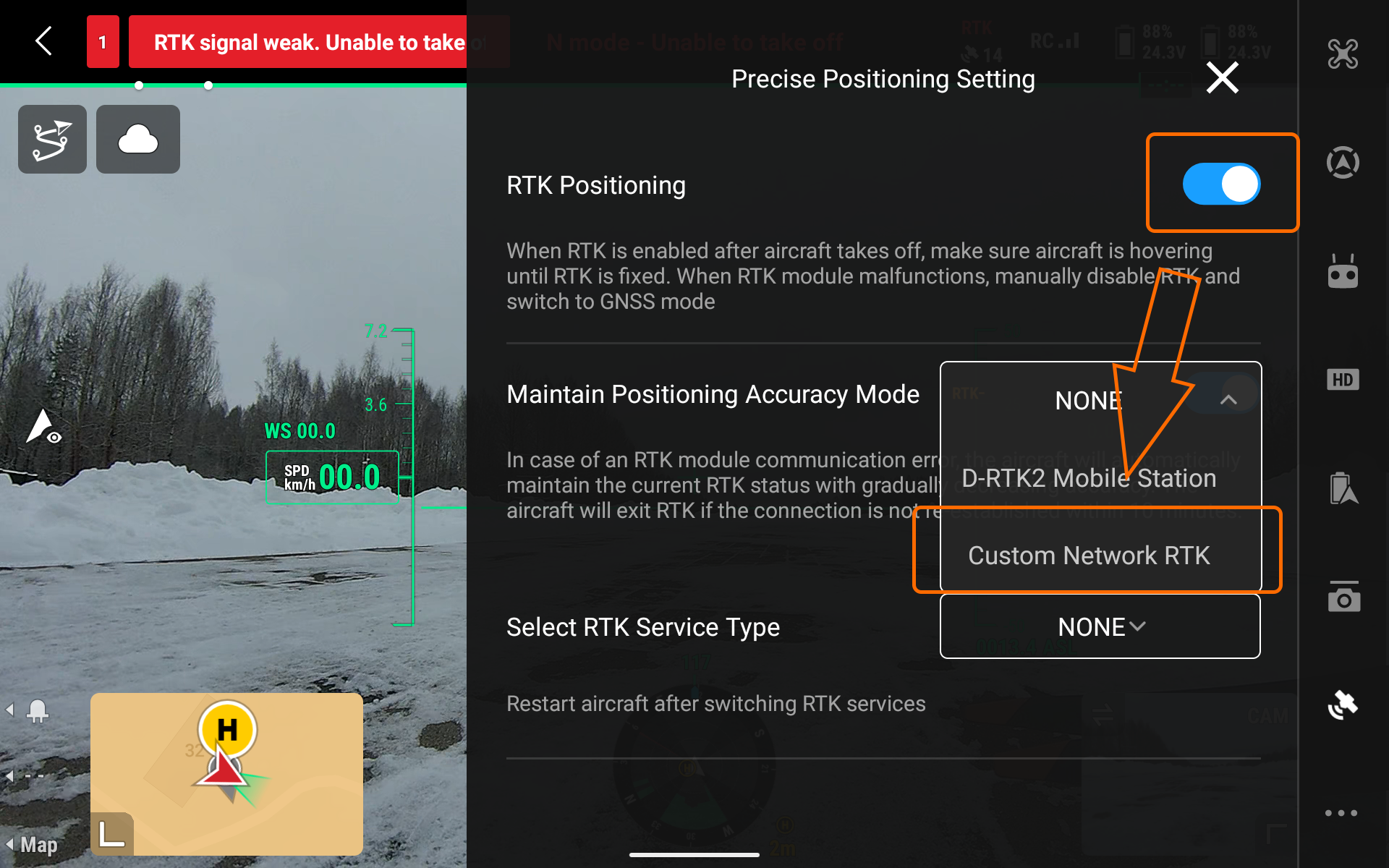
DJI Pilot 2 RTK configuration window#
Use the connection details from the first step.
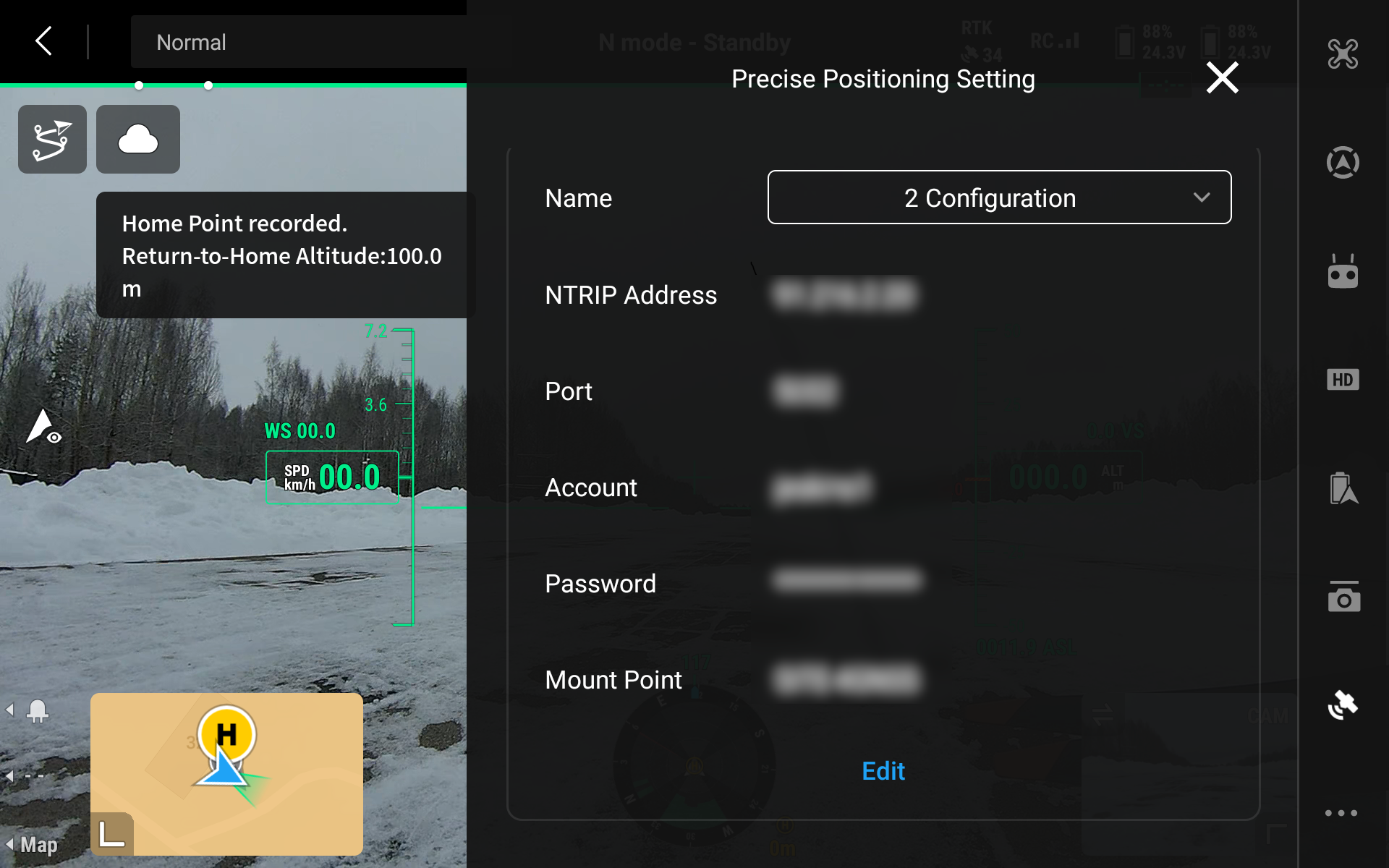
DJI Pilot 2 NTRIP setup#
Wait until the RTK solution status becomes FIX.
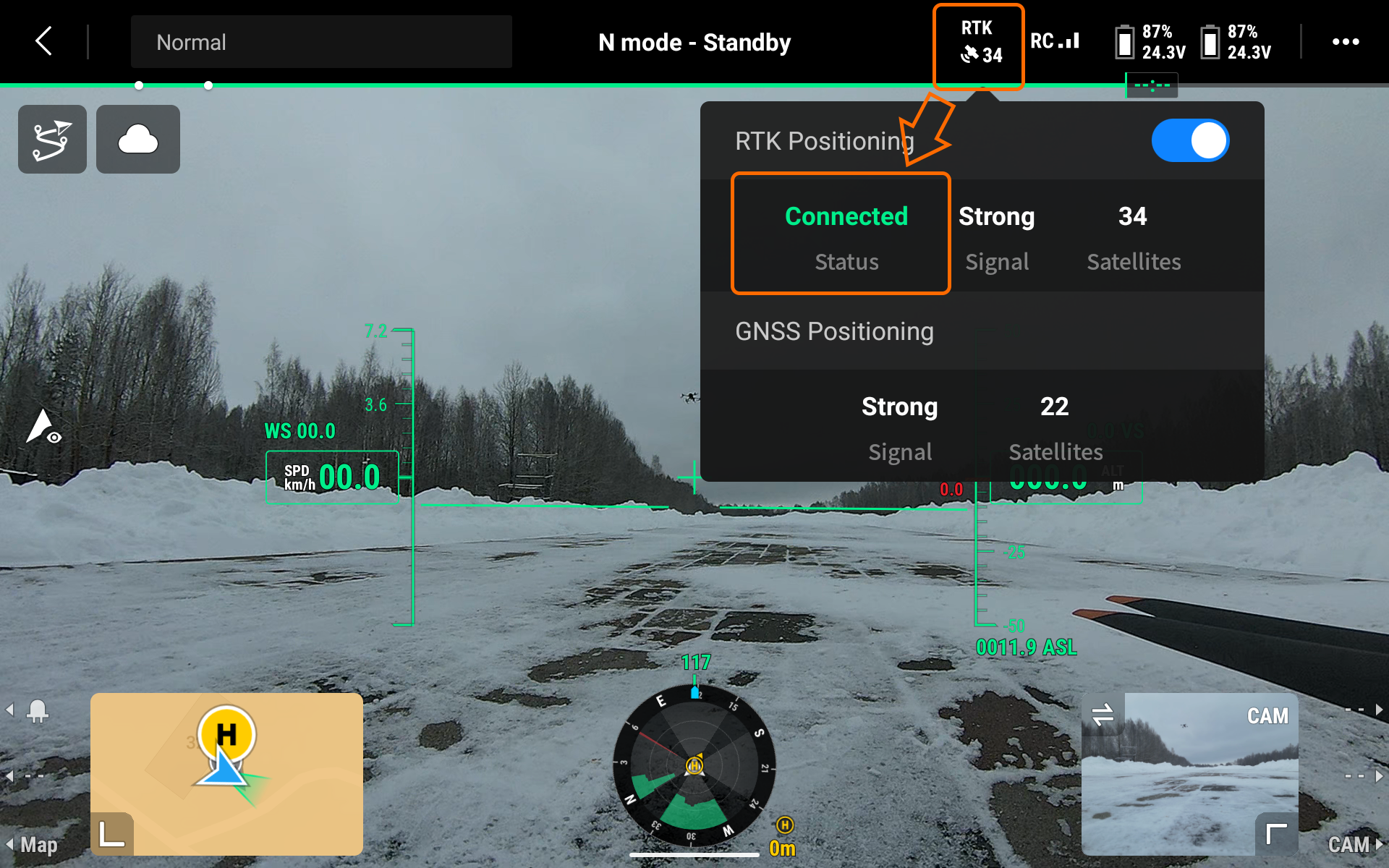
DJI Pilot 2 FIX solution widget#
1.4. RTK Base Station Setup#
1.4.1. Base Station Positioning#
The GNSS receiver needs a clear view of the sky 30 degrees above the horizon without any obstacles from buildings, vegetation, cars, or people, and without any interference from all electronics, cell towers, and other radio transmitters, or metals. When placing your receiver in the field, make sure it is placed precisely above the previously known coordinates.
When you are setting up base coordinates manually, you need to measure the antenna height offset. You can do that by measuring the distance from the mark of your known point to the bottom of your receiver. When you place the receiver over the mark and measure the antenna height, you are ready to set up the base position.
1.4.2. Base Station Configuration#
To begin with, connect to your receiver through the native app. In this example, you can see the setup process for the Emlid Reach base station through the Emlid Flow mobile application.
Open the Emlid Flow app on your mobile device and establish the connection to your base station.
Go to the Base settings and press Configure.
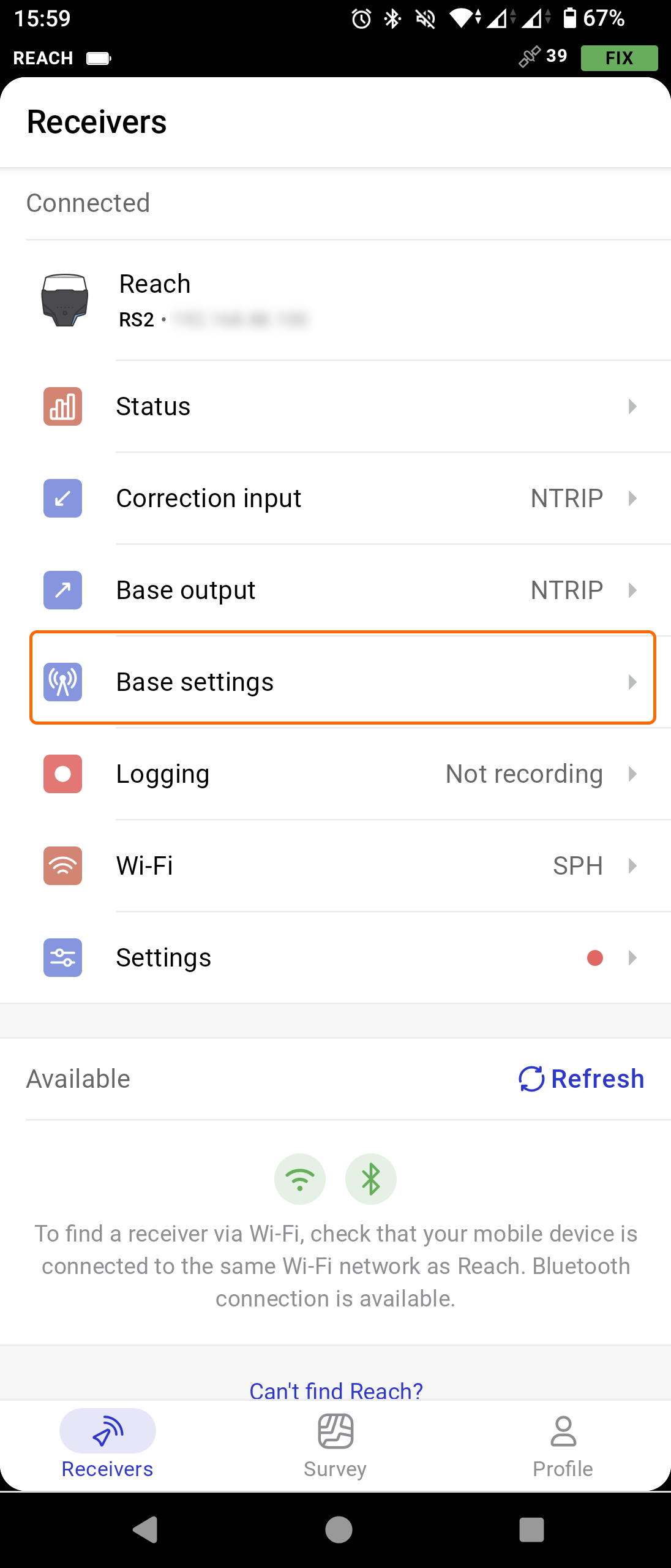
Emlid Flow Base settings#
Click on the Coordinates entry method and select Manual from the drop-down list.
Next, click on the Antenna height section and fill in the value of the distance from the mark of your known point to the bottom of your receiver.
Enter the DD coordinates (longitude and latitude) of the known point under the receiver.
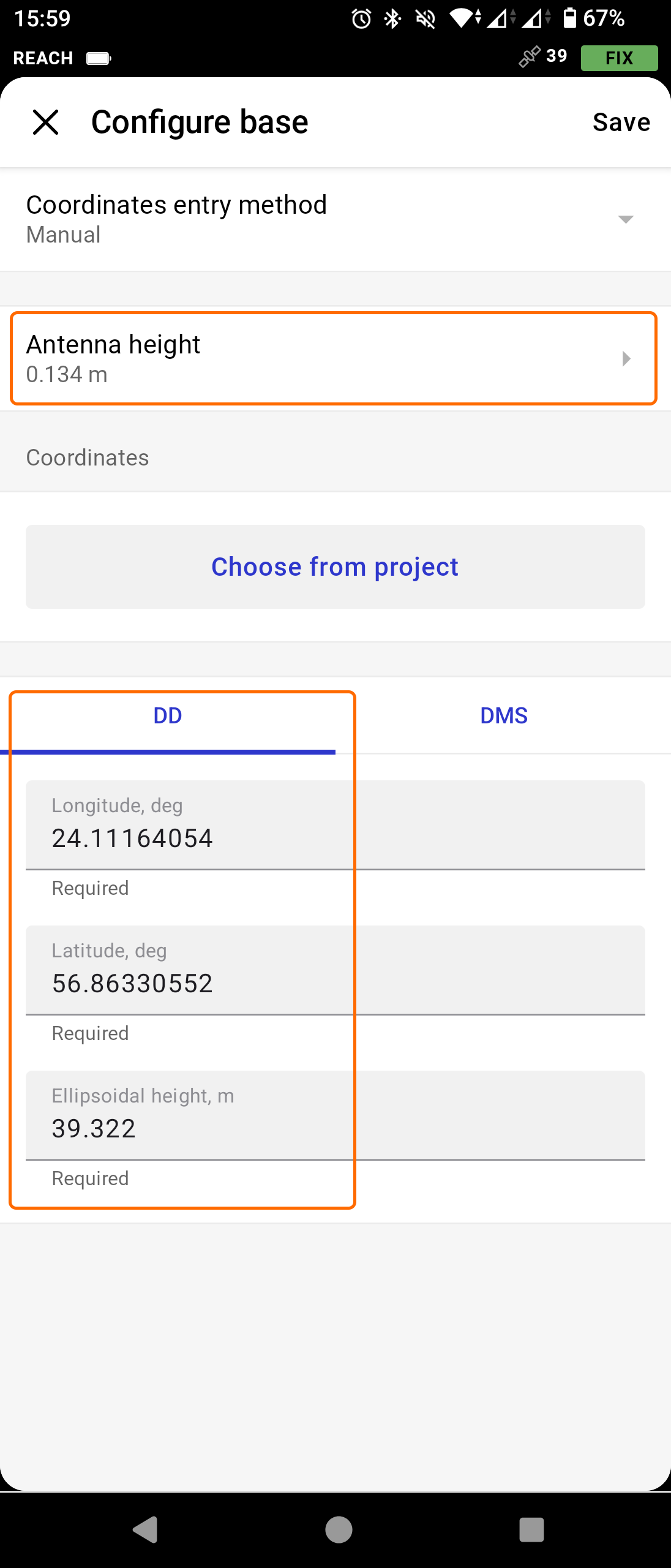
Emlid Flow Base settings#
Setup is complete.
In terms of repeatability, make sure that the base station is located at the same spot throughout each survey that you will repeat. Place the hardware and repeat the station configuration as described above.
1.5. Flight Planning for Repeatability#
1.5.1. Creating Reusable Mission Plans#
The first step will be the mission planning itself. Launch the UgCS desktop software, select your drone model, select the survey type, and plan the route according to your goal.
1.5.2. Backing Up the Route#
When ready, export the route. Use the JSON format for general backup. This will cover you in case of a laptop (hardware) malfunction. Recreating a mission by hand might get tricky and will take unnecessarily long. Go to the route properties and then the Export button.
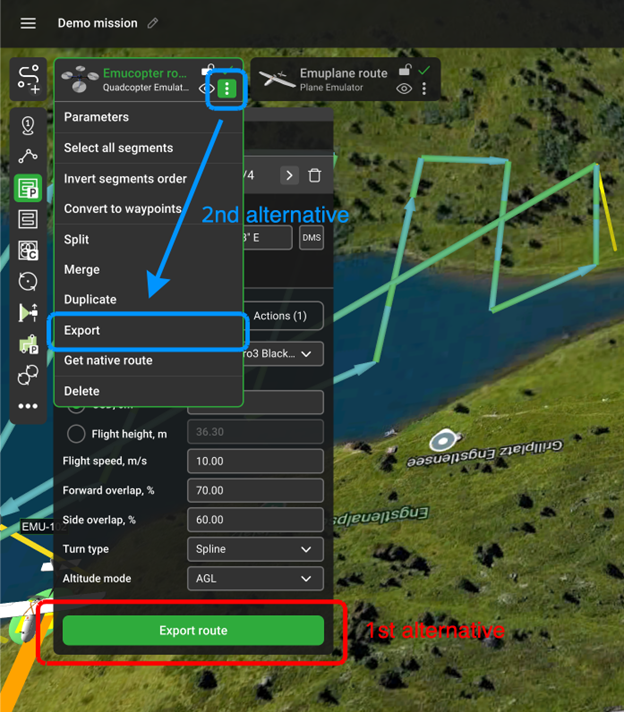
UgCS Route Export#
Note
Note that UgCS recalculates the route each time you open it or make any changes. Thus, you also need to use the same DEM, drone and payload profile each time. Depending on the drone and software you will be using to execute the flight, you can additionally export your route in KMZ (for further upload to the DJI Pilot 2 app on the remote controller) or use the Native Route for PixHawk-based drones.
UgCS Get Native Route#
1.6. Sensor Configuration#
1.6.1. Sensor-specific Settings for Repeatability#
If the survey includes any standalone payload (sensor) attached to the drone, make sure that the configuration of the SkyHub and the payload itself is the same throughout each flight. This will ensure that the collected flight data can be compared with each other, excluding the inaccuracies during the hardware setup. The same goes for any external GNSS receivers (if any are used) and the post-processing software. Collected data sets must be post-processed with the same pattern.
1.7. Survey Execution#
1.7.1. Base Station Verification#
Before each survey, check the status overview in Emlid Flow app. Click on the Correction input and check if the NTRIP is receiving corrections. Next, click on the Status and verify the satellite count and solution status (if additional NTRIP connection is used on the base station).
Lastly, if further PPK will be necessary, check if the raw satellite data is being recorded on the base station. Navigate to the Logging section, make sure that the position track and base corrections are being recorded. By the end of the survey, RINEX data will be available for download and further post-processing.
1.8. Repeated Survey Execution#
1.8.1. Using Saved Mission Plans#
To successfully execute a repeatable mission, you will need to repeat the same flight route each time. The best way to accomplish this is by using the route from the backup as described previously. Launch the UgCS software, navigate to the top left corner, click on the “Add new route” button, and select your JSON file. Note that other formats will not contain all the necessary information about a route. When the route is open, it is ready to be uploaded to the drone.
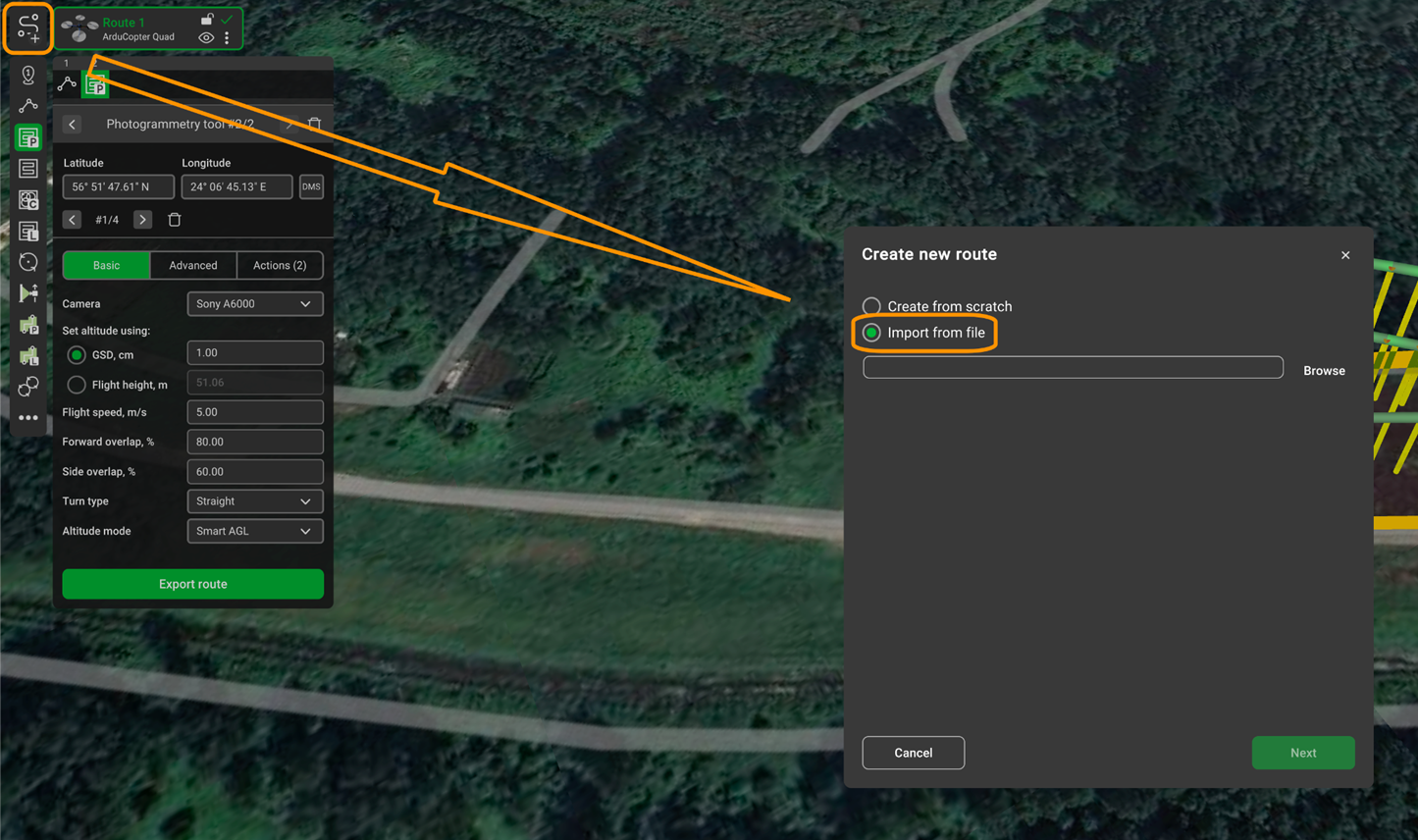
UgCS Get Native Route#
1.8.2. Verifying Consistency Between Surveys#
After a couple of flights, it is wise to check the consistency of the data collected across the surveys. This will allow you to determine mistakes (if there are any) and not waste time on further missions, since the result data will not be valid.
Make sure that the same base station is used and that the antenna height is set identically each time. Next, confirm that all surveys use the same coordinate reference system for both horizontal and vertical heights. Lastly, maintain the same flight altitude, speed, and payload settings (if any are in use).
Additionally, you may compare the RTK deviation values across all flights. Maintaining it within the same range each time will ensure better repeatability.
1.9. Data Management#
Placing a base station at the same spot and running the same missions may not be enough to ensure repeatability. It may also be useful to document the entire workflow and create a “readme” file. This may include base station positioning, RTK deviation values, mission specifics, weather conditions, etc.
It is also a good practice to back up the entire project data, including the surveying data. The 3-2-1 backup rule will ensure reasonably secure storage: keep three copies of data, on two types of media, with one stored offsite.
1.10. Common Issues and Troubleshooting#
1.10.1. RTK FIX Loss During Flight#
If during the flight, you notice that the RTK status is degraded, you will have two options: either continue the flight without the corrections, or return and troubleshoot the connectivity issue. In both cases, such a flight will not be suitable for the data comparison.
Resolution:
For NTRIP users: Check the internet connection on the remote controller. Ensure stable cellular or Wi-Fi coverage in the survey area. Consider using a mobile hotspot with a stronger signal or relocating closer to a cell tower.
For base station users: Verify the radio link between the base station and the drone. Reduce the distance between them or reposition the base station to a higher elevation for better line-of-sight. Check the base station battery level.
General: Ensure the drone’s RTK antenna has a clear sky view and is not obstructed by payload equipment. After resolving the issue, restart the mission from the beginning to maintain data consistency.
1.10.2. Position Drift Between Surveys#
If, during the data comparison between the surveys, you notice that the drone position differs relative to the flight path, most probably this is the result of incorrectly set base station coordinates or incorrect placement of the base station itself.
Resolution:
Verify that the base station is positioned at the exact same marked location for each survey. Use physical ground markers or survey nails for precise placement.
Double-check the manually entered base coordinates and antenna height values match previous surveys.
If using NTRIP, ensure you are connecting to the same mount point each time, as different mount points may use different reference frames.