1. Upgrade/Downgrade Firmware#
Note
All manipulations with the firmware can be done only over the Auxiliary connection.
Warning
The firmware version on the SkyHub must match the UgCS-CPM version on your computer. If there is a version mismatch, you will get a system message accordingly.
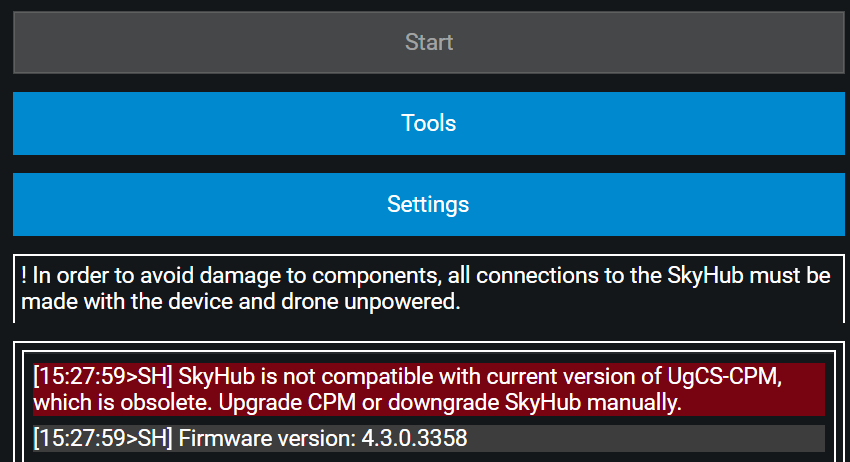
UgCS-CPM Firmware mismatch message#
1.1. Firmware upgrade process#
In general, if the UgCS-CPM version on your computer is newer than the firmware version on the SkyHub, upon establishing the Auxiliary connection, you will receive the popup notification, with the changelog.
You can confirm, accept, and install the upgrade right away.
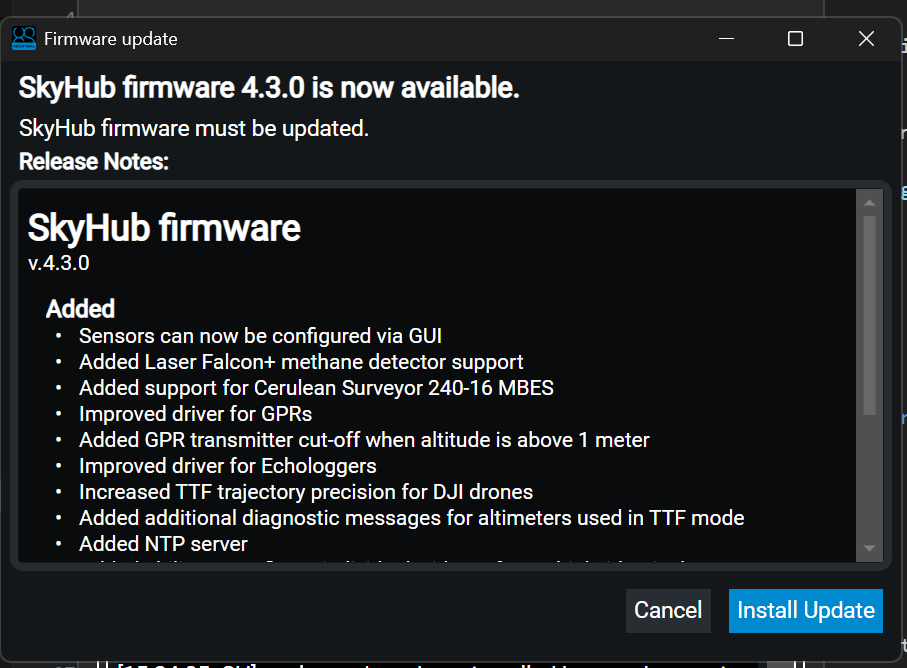
UgCS-CPM Firmware upgrade popup#
Alternatively, it is possible to initiate the upgrade process manually, by selecting an exact version you wish to upgrade to:
Connect the PC to the SkyHub using Wi-Fi or by Ethernet cable. See Preparation guide for instructions.
Open UgCS-CPM and go to “Tools”.
From the drop-down list, select “Manage SkyHub”.
Click the “Browse” button and select the firmware file you wish to upgrade to.
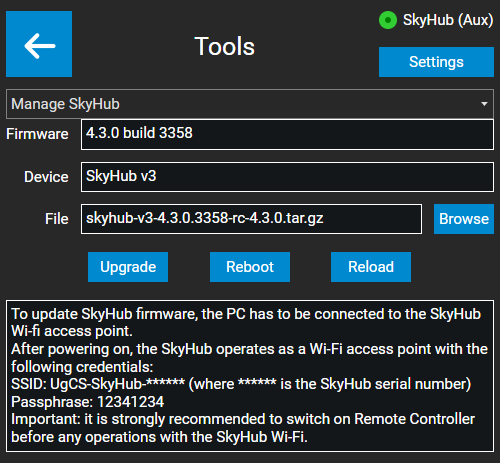
UgCS-CPM Manage SkyHub Section#
Note
The latest SkyHub firmware compatible with the installed UgCS-CPM is located in UgCS-CPM/firmware folder - C:/Program Files (x86)/UgCS-CPM/firmware
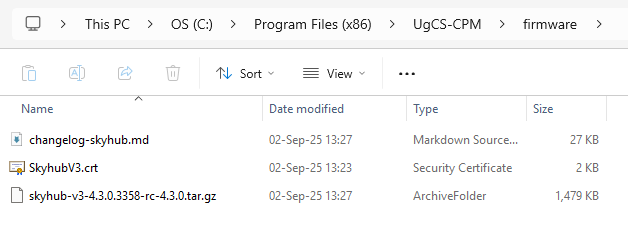
UgCS-CPM Firmware folder#
When the firmware is selected, press the “Upgrade” button.
Firmware installation will start.
Note
The upgrade process takes around 10 - 15 minutes. First, the firmware is uploaded to SkyHub, then the installation process starts automatically and will complete even if the connection with SkyHub is lost. If the firmware update is run over Wi-Fi, the connection with SkyHub will be lost once SkyHub restarts after the upgrade. Look for SkyHub Wi-Fi to appear in the Windows Wi-Fi list and reconnect. If the firmware update is run over Ethernet, the connection with SkyHub will be established automatically after the restart.
1.2. Firmware downgrade process#
The downgrade process is quite similar to the upgrade. The only difference is that after the SkyHub firmware downgrade, you must reinstall the UgCS-CPM software as well to match the versions.
Connect the PC to the SkyHub using Wi-Fi or by Ethernet cable. See Preparation guide for instructions.
From the drop-down list, select “Manage SkyHub”.
Click the “Browse” button and select the firmware file you wish to downgrade to.
Click the “Upgrade” button.
Wait for the downgrade process to finish.
Uninstall the current UgCS-CPM version and install the corresponding version for the firmware you just downgraded to.
Downgrade is complete.
Note
Depending on the version you are downgrading to, it might be necessary to delete the existing configuration file and reconfigure both autopilot and payloads from scratch.